


The best-known JavaScript SEO warning says Google cannot read content that JavaScript builds in the browser. For Google Search, that has not been true for years: Googlebot renders pages in an evergreen version of Chromium and indexes what the rendered page shows [1]. A 2024 study of nextjs.org found that every indexable HTML page Googlebot fetched was fully rendered, including pages with complex JavaScript [8].
The warning has not gone away, though. It now applies to a different set of crawlers. The bots behind ChatGPT, Claude and Perplexity were found not to run JavaScript at all [9]. This guide explains how each kind of crawler handles JavaScript, which rendering setup suits which site, and how to test what crawlers receive from yours. It belongs to our technical SEO fundamentals guide, where rendering is one part of making a site crawlable.
Key takeaways
- JavaScript SEO is the work of making sure content, links and SEO tags built with JavaScript reach search engines and AI crawlers.
- Google renders JavaScript, usually within seconds of crawling, but the queue can stretch to hours for some pages.
- Most AI crawlers read only the raw HTML. Anything that appears only after JavaScript runs is invisible to them.
- Server-side or static rendering of the main content is the safe default; dynamic rendering is a workaround Google no longer recommends.
- Put titles, canonicals, robots directives, links and main text in the raw HTML. Use JavaScript to add to the page, not to correct it.
- Test by comparing the raw HTML with the rendered page, then confirm in Search Console’s URL Inspection tool.
Table of Contents
ToggleWhat is JavaScript SEO?
JavaScript SEO is the part of technical SEO that makes sure crawlers can find, render and index pages whose content or links depend on JavaScript. In practice it comes down to one question: is everything that matters for search present in the HTML the server sends, or does it appear only after scripts run in a browser?
If it is in the server’s HTML, every crawler gets it. If it appears only after rendering, Google will usually get it a little later, and most AI crawlers will not get it at all. Frameworks such as React, Vue and Angular can produce either outcome, depending on how the site is configured. A WordPress site can produce both: the theme and page builder generate the article on the server, while plugins and theme features may load parts of the page later with JavaScript.
How does Google process JavaScript pages?
Google handles JavaScript pages in three phases: crawling, rendering and indexing [1]. Googlebot first fetches the URL and reads the HTML the server returns. Every page that returns a 200 status code is then queued for rendering, unless a robots meta tag or header tells Google not to index it. When resources allow, a headless Chromium runs the JavaScript, and Google parses the rendered HTML again for links and content to index [1].
How long does rendering take?
Usually seconds, sometimes hours. Vercel and MERJ measured more than 37,000 crawl-and-render pairs on nextjs.org in April 2024. The median time between crawl and completed render was 10 seconds. The 90th percentile was about three hours, and the 99th about 18 hours. URLs with query strings waited longer [8]. That is one framework’s site in one month, so treat the numbers as an indication, not a guarantee for your site.
The delay matters most for time-sensitive pages and very large sites. For a typical article, the bigger risk is not the wait. It is something in the page that stops the rendered version from containing the content at all.
What Google does not do when it renders a page
Google’s renderer does not behave like a visitor. Its documentation and testing show that it:
- does not click, scroll or type. Content that loads only after a click or a scroll event may never be seen [4].
- keeps no state between page loads. Cookies, Local Storage and Session Storage are cleared, so content that depends on a stored value or a previous visit is not rendered [2].
- declines permission requests such as camera or location access [2].
- does not support WebSockets or WebRTC. Content must also be available over plain HTTP [2].
- may skip rendering a page that has
noindexin its original HTML. Removing the tag with JavaScript may therefore never take effect [1]. In the nextjs.org study, pages withnoindexin the initial HTML were not rendered at all [8]. - caches aggressively and may ignore your caching headers. Google recommends fingerprinting file names (for example
main.2bb85551.js) so it fetches the new file after a release [1].
There is also a size limit. Googlebot reads the first 2 MB of each HTML, JavaScript or CSS file, measured uncompressed, and ignores the rest [6]. Few pages reach it, but very large inline data blobs and single-bundle apps can.
Can AI crawlers see JavaScript content?
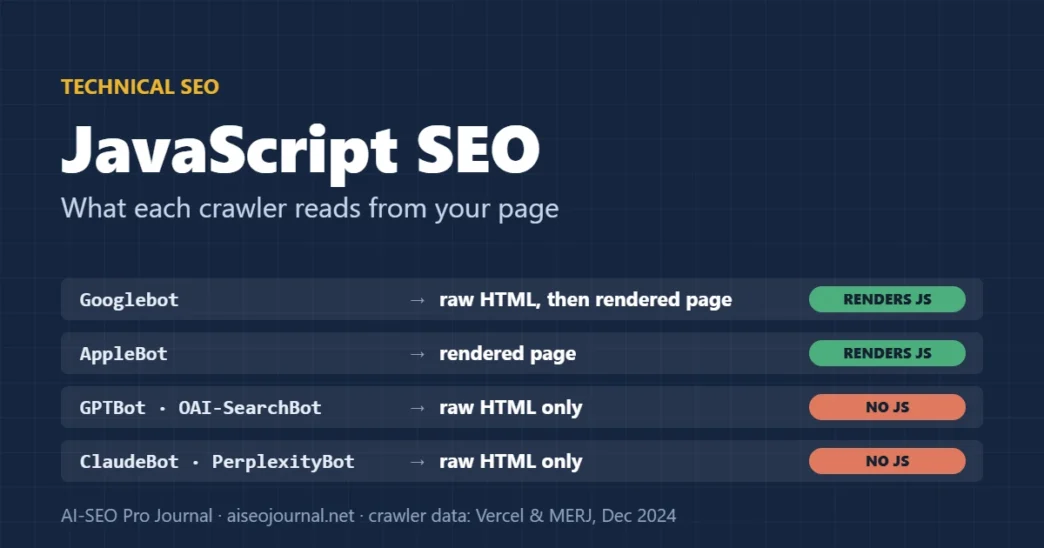
Mostly not. In December 2024 Vercel and MERJ reported that none of the major AI crawlers they observed rendered JavaScript. This included OpenAI’s GPTBot, OAI-SearchBot and ChatGPT-User, Anthropic’s ClaudeBot, PerplexityBot, Meta-ExternalAgent and Bytespider. ChatGPT’s and Claude’s crawlers did download JavaScript files, but did not execute them [9]. Two exceptions appeared in the same study. Gemini uses Googlebot’s infrastructure, so it gets fully rendered pages, and AppleBot renders pages with a browser-based crawler [9].
AI crawlers change quickly, and this is a 2024 snapshot from one company’s network. The practical conclusion is unlikely to change soon, though. If you want a page to be read, quoted or cited by AI assistants, its main content has to be in the HTML the server sends.
| Crawler | Runs JavaScript? | What it reads |
|---|---|---|
| Googlebot (Google Search, and Gemini via the same infrastructure) | Yes, after a render queue | Raw HTML first, then the rendered page [1] [9] |
| AppleBot | Yes | Rendered page [9] |
| GPTBot, OAI-SearchBot, ChatGPT-User (OpenAI) | No (2024 data) | Raw HTML only [9] |
| ClaudeBot (Anthropic) | No (2024 data) | Raw HTML only [9] |
| PerplexityBot, Meta-ExternalAgent, Bytespider | No (2024 data) | Raw HTML only [9] |
From our own site: On 7 November 2026 we compared the raw HTML of aiseojournal.net with the page Chrome renders. Requests with a browser user agent and with GPTBot’s user agent returned byte-identical HTML. On a typical guide, the article text was almost entirely in the raw HTML: 6,538 words raw against 6,574 rendered. The title, canonical, robots tag, H1 and schema were also present before any script ran. The homepage was different. Our theme’s mega-menu fetches its “Trending Now” and “Most popular” post lists about four seconds after the page loads. Those 14 internal links, and roughly 800 words, exist only after JavaScript runs, so a crawler that reads raw HTML never sees them.
Which rendering method is best for SEO?
For search, the best method is one that puts the main content, links and SEO tags in the HTML the server sends. That means server-side rendering, static rendering, or either one combined with hydration. Google’s own guidance recommends these over dynamic rendering, which it describes as a workaround [5]. Google’s rendering guide on web.dev sets out the trade-offs [7]:
| Method | What happens | Search and AI crawlers | Main trade-off |
|---|---|---|---|
| Client-side rendering (CSR) | The server sends a near-empty shell; JavaScript builds the page in the browser. | Google: after rendering. Most AI crawlers: little or nothing. | Least server work, but JavaScript grows with the app and can hurt responsiveness (INP). |
| Server-side rendering (SSR) | The server builds full HTML for each request. | All crawlers get the content in the first response. | Fast first paint and less JavaScript, but more server time and a slower first byte. |
| Static rendering / pre-rendering | HTML is generated at build time, one file per URL. | All crawlers get the content. | Fast and cheap to serve, but every URL must be known in advance, which is hard on very large sites. |
| SSR or static + hydration | Server HTML first, then JavaScript makes it interactive. | All crawlers get the content. | Hydration can delay interactivity and hurt INP on heavy pages. |
| Dynamic rendering | Bots get a pre-rendered version; users get the client-side app. | Works for crawlers it detects; others may get the empty shell. | Google calls it a workaround, not a recommended solution [5]. |
The trade-off people miss is speed. Moving to SSR solves the crawler problem, but a page that sends full HTML and then a large hydration bundle can still score badly on interaction. Check the performance side alongside rendering. Our site speed and Core Web Vitals guide covers how to measure it.
Professional tip: You rarely need to re-platform. Ask the developers which routes are client-side only and move just the ones that should rank, such as product, category and article templates, to SSR or static output. Account areas and dashboards can stay client-side, because you do not want them indexed anyway.
Seven JavaScript problems that stop pages being indexed
Most JavaScript SEO failures come from a short list of patterns. Each one below has a fix that Google documents.
1. Links that are not real links
Google follows <a> elements with an href attribute. Links that work only through an onclick handler, a <span>, or href="javascript:…" are not recommended, and Google may not follow them [3]. Fix: every navigation link should be an <a href="/real-url/">. JavaScript can still handle the click, as long as the href is there.
2. Routes in URL fragments
Single-page apps that route with #/products/shoes URLs give Google nothing separate to index, because the part after # is not treated as a different page. Google deprecated its old AJAX crawling scheme in 2015 [2]. Fix: use the History API so each view has a normal path, such as /products/shoes [1].
3. Soft 404s in single-page apps
A client-side app often returns status 200 for every URL and shows “not found” with JavaScript. Google can then treat those error views as soft 404s. Fix: return a real 404 from the server where possible. Otherwise, redirect with JavaScript to a URL that does return 404, or add a noindex robots tag with JavaScript on error views [1].
4. Robots and canonical tags changed by JavaScript
Teams sometimes ship noindex in the HTML and remove it with JavaScript once data loads. Google may not render the page at all, so the tag stays [1]. Canonical tags have a similar trap: Google advises against using JavaScript to change the canonical to a different URL from the one in the original HTML [1]. Fix: send the final robots and canonical values from the server. Our guides to meta robots tags and canonical tags cover the values themselves.
5. Content that needs a click or scroll
Tabs, “load more” buttons and infinite scroll often fetch content only when the user acts. Google does not interact with the page, so lazy-loading must not depend on scrolling or clicking [4]. Fix: load content that should rank in the initial HTML. Hide it visually in tabs if needed, but do not fetch it on click. For infinite scroll, give each chunk its own URL with an absolute page number, such as ?page=12, and link the chunks to each other [4].
6. Blocked or out-of-date JavaScript files
If robots.txt blocks the scripts, styles or API endpoints a page needs to render, Google renders a broken page. Vercel’s study recommends keeping critical JavaScript, CSS and API resources crawlable [8]. Because Google’s renderer may ignore caching headers, it can also run an old bundle after a release [1]. Fix: check the resources list in URL Inspection, unblock what rendering needs (see our robots.txt guide), and fingerprint file names.
7. Structured data that only exists after rendering
Google can read JSON-LD that JavaScript adds, including through Google Tag Manager. It notes, however, that dynamically generated Product markup can make Shopping crawls less frequent and less reliable [10]. AI crawlers that do not render will not see it at all. Fix: output structured data in the server HTML. Test with the Rich Results Test in URL mode, not code mode [10].
Professional tip: Shadow DOM content is indexed only if it appears in the rendered HTML, because Google flattens the shadow and light DOM [1]. If a design system uses web components, check the components that render headings and body text in URL Inspection.
How to test what crawlers see on your site
Start by comparing two versions of the same URL: the HTML the server sends, and the page after JavaScript has run. Anything important that appears only in the second version is a JavaScript SEO risk. Then confirm with Google’s own tools.
Test what crawlers see in five steps
- Read raw HTMLView-source or curl: find the H1, main text, canonical, robots tag and links
- Fetch as AI crawlerSame request with a crawler user agent; compare with step 1
- URL InspectionLive test: rendered HTML, screenshot, blocked resources, console
- Check structured dataRich Results Test on the URL, not pasted code
- Crawl twiceRendering off and on; compare words, links and titles per template
- Read the raw HTML. Open
view-source:in Chrome, or fetch the page withcurl. Search it for the H1, a sentence from the middle of the main text, the canonical, the robots tag and three internal links. View-source shows what the server sent. The Elements panel in DevTools shows the page after scripts have changed it, so do not use that for this step. - Fetch it as an AI crawler. Request the page with a crawler’s user agent, for example
curl -A "GPTBot" https://example.com/page/, and compare the result with step 1. A different response means your server or CDN treats bots differently. Check that this is intended and that the content is equivalent. - Run URL Inspection. In Search Console, inspect the URL, run the live test and open “View tested page”. Check the rendered HTML, the screenshot, the page resources that could not load and the JavaScript console messages [2].
- Check structured data. Run the Rich Results Test on the URL and confirm that the markup appears in the rendered result [10].
- Crawl with rendering on and off. Crawl a sample of each template twice, once as plain HTML and once with JavaScript rendering. Compare word counts, links and titles. Large differences show which templates depend on JavaScript.
On WordPress and Elementor sites, the same raw-versus-rendered comparison also catches plugin and cache problems. Our rendered on-page SEO audit guide walks through it for titles, canonicals and headings.
I am checking whether search engines and AI crawlers can see the important parts of a web page.
Below are two versions of the same URL:
A) the raw HTML the server sends (from view-source or curl)
B) the rendered HTML after JavaScript has run (from URL Inspection > View tested page, or a rendering crawler)

1. List every item that is in B but missing from A, grouped as: main text, headings, internal links, title/meta description, canonical, robots directives, structured data, images.
2. For each missing item, say whether it matters for search (yes / no / unsure) and why, in one sentence.
3. List any value that differs between A and B (for example a canonical, robots tag or title that JavaScript changes).
4. Flag links that are not <a href> elements, and any URLs that use # routes.
Only report what is in the two code samples. Do not guess about pages, rankings or traffic you cannot see.

A) [paste raw HTML]
B) [paste rendered HTML]
Professional tip: Do not try to fix a gap by serving crawlers something different from what users see. Google treats dynamic rendering as acceptable only when the content is similar; serving different content to crawlers is cloaking [5]. Fix the template instead, so everyone gets the same HTML.
JavaScript SEO checklist
| Check | Where to look | Pass |
|---|---|---|
| Main text, H1 and title in the server HTML | View-source / curl | Present without JavaScript |
| Canonical and robots tags final in the server HTML | View-source | Same values before and after rendering |
Navigation and in-content links are <a href> | View-source, crawler | Real URLs, no javascript: or click-only links |
Each view has its own path (no # routes) | Browser address bar | History API URLs |
Missing pages return 404 (or noindex) | URL Inspection, HTTP headers | No soft 404s |
| Content does not wait for a click or scroll | URL Inspection rendered HTML | Content present in the rendered HTML |
| Rendering resources not blocked | URL Inspection → page resources | No critical JS, CSS or API calls blocked |
| JS and CSS files fingerprinted | File names in source | New file name after each release |
| Structured data in the server HTML | View-source, Rich Results Test | JSON-LD present and valid |
| AI crawlers get the same HTML | curl with a crawler user agent | Same content as a browser request |
Frequently asked questions
Does Google render JavaScript?
Yes. Googlebot crawls the HTML first, queues the page and then renders it with an evergreen version of Chromium before indexing what the rendered page shows. Rendering usually follows within seconds, but it can take hours for some pages, and pages with noindex in the original HTML may not be rendered at all.
Is JavaScript bad for SEO?
No. JavaScript is a risk only when content, links or SEO tags exist only after it runs. Sites that send their main content in the server HTML and use JavaScript for interactivity do not need special handling in Google.
Can ChatGPT read content loaded with JavaScript?
Usually not. A December 2024 study by Vercel and MERJ found that OpenAI’s crawlers, including GPTBot and OAI-SearchBot, downloaded some JavaScript files but did not execute them. Content that appears only after JavaScript runs is unlikely to be read, so put it in the server HTML.
Is dynamic rendering still acceptable?
Google describes dynamic rendering as a workaround and not a recommended solution, because it adds complexity and resource costs. It recommends server-side rendering, static rendering or hydration instead. Existing setups are not treated as cloaking as long as bots and users get similar content.
Do WordPress sites need to worry about JavaScript SEO?
Less than single-page apps, because WordPress builds the main content on the server. Check themes and plugins, though. Menus, tabs, reviews, related posts and “load more” lists are sometimes loaded with JavaScript after the page arrives, and crawlers that do not render will miss those links.
Start with the raw HTML, then fix templates
Pick your three most important templates, for example the home page, a category and an article, and run the five-step test on one URL of each. Write down everything that appears only after rendering. Then decide for each item whether it matters for search. Main content, links to important pages and SEO tags must move into the server HTML. Decorative or account-only features can stay as they are.
Once rendering is settled, the next technical checks are crawl access and indexing controls. The technical SEO fundamentals guide sets out the order to work through them.
Sources
- Google Search Central — Understand the JavaScript SEO basics
- Google Search Central — Fix Search-related JavaScript problems
- Google Search Central — Link best practices for Google
- Google Search Central — Fix lazy-loaded content
- Google Search Central — Dynamic rendering as a workaround
- Google Search Central — Googlebot
- web.dev (Google) — Rendering on the web, updated 5 January 2026
- Vercel and MERJ — How Google handles JavaScript throughout the indexing process, 31 July 2024
- Vercel and MERJ — The rise of the AI crawler, 17 December 2024
- Google Search Central — Generate structured data with JavaScript