

Your website is bleeding visitors through invisible cracks. Every broken link, every server timeout, every misconfigured redirect creates a dead end where traffic should flow. Worse yet, you might not even know it’s happening.
Welcome to the world of crawl errors—the silent killers of SEO performance. These technical glitches prevent search engines from accessing your content, waste precious crawl budget, and tank rankings faster than algorithm updates. According to a recent study by Search Engine Journal, websites with unresolved crawl errors experience an average 23% decline in organic visibility within six months.
Picture a library where half the books are locked behind doors with broken handles. That’s your website when crawl errors run wild. Search engines arrive ready to index your brilliant content, but encounter obstacles at every turn—dead links, server crashes, redirect loops that spin infinitely into the void.
This isn’t theoretical. Real businesses lose real money when Googlebot can’t reach their product pages, when server errors block their best content, when 404 errors create black holes in their site architecture. The difference between thriving and surviving often comes down to systematic crawl error management.
Table of Contents
ToggleWhat Are Crawl Errors?
Crawl errors occur when search engine bots attempt to access pages on your website but encounter problems that prevent successful crawling. Think of Googlebot as a dedicated employee trying to catalog your inventory—except doors keep slamming in its face, hallways lead nowhere, and half the rooms are locked without keys.
These errors fall into two broad categories: site errors and URL errors. Site errors affect your entire domain—server crashes, DNS failures, robots.txt problems. URL errors affect individual pages—404 not found, soft 404s, access denied responses.
Each error type sends different signals to search engines. Server errors suggest temporary technical problems. 404 errors indicate permanently missing content. Redirect errors signal potential site architecture issues. Understanding these distinctions determines how you fix them and how urgently.
Your technical SEO fundamentals must include crawl error monitoring, or you’re essentially flying blind. Google discovers problems faster than you do—and penalizes accordingly.
Why Crawl Errors Matter for SEO
Wasted Crawl Budget
Search engines allocate limited crawl budget to each website based on authority, freshness needs, and server capacity. When crawlers waste time hitting errors instead of indexing valuable content, important pages might never get crawled.
According to Google’s Gary Illyes, sites with extensive crawl errors force Googlebot to spend resources on problems rather than opportunities. A site with 10,000 pages and 2,000 crawl errors effectively loses 20% of its crawl budget to dead ends.
E-commerce sites with thousands of products feel this acutely. If Googlebot wastes crawl budget on discontinued product 404s, your new inventory might not index for weeks—costing sales during crucial launch periods.
Lost Rankings and Traffic
Pages with crawl errors can’t rank. Obvious, but profound. That brilliant blog post returning 500 server errors? Invisible to Google. That product page behind a 403 access denied error? Might as well not exist.
Research by Ahrefs in 2024 found that resolving critical crawl errors improved organic traffic by an average of 34% within three months. The correlation between clean crawling and strong rankings isn’t coincidental—it’s causal.
Poor User Experience Signals
Crawl errors often indicate UX problems that hurt beyond SEO. Internal 404 errors suggest broken navigation. Server errors mean users see error pages instead of content. These experiences increase bounce rates and decrease engagement—signals search engines absolutely notice.
Google’s Core Web Vitals update elevated user experience to ranking factor status. Sites serving error pages fail on every UX metric: poor CLS when errors load, terrible FID when pages don’t respond, and atrocious LCP when nothing loads at all.
Types of Crawl Errors in Google Search Console
Server Errors (5xx Status Codes)
Server errors indicate your website’s server failed to fulfill a request. The 500 Internal Server Error is most common, but 502 Bad Gateway, 503 Service Unavailable, and 504 Gateway Timeout all signal serious problems.
These errors tell search engines “something’s broken on our end.” Unlike 404 errors (which indicate missing content), server errors suggest technical failures that might be temporary. Googlebot typically retries server errors multiple times before giving up on a URL.
A Moz study from 2024 revealed that pages returning server errors for more than 48 hours often drop from rankings entirely, even if the error eventually resolves. Speed matters.
404 Not Found Errors
404 errors mean the requested page doesn’t exist at that URL. This is often intentional—you deleted old content, discontinued products, or restructured your site. Not all 404s are problems; some are natural and expected.
The SEO community debates whether 404s directly harm rankings. Google’s John Mueller has stated repeatedly that 404s don’t inherently damage SEO—they’re part of healthy website evolution. The harm comes from poor implementation: broken internal links pointing to 404s, valuable inbound links landing on 404s, or excessive 404s indicating site architecture problems.
Context determines severity. One hundred 404s from discontinued products? Normal. One hundred 404s from your main navigation? Catastrophic.
Soft 404 Errors
A soft 404 occurs when a non-existent page returns a 200 OK status code (indicating success) instead of proper 404 status. The page might say “not found” or show minimal content, but the server lies about the status code.
User sees: "This page doesn't exist"
Server says: "200 OK - Success!"
Soft 404s confuse search engines. Google sees a successful response code but finds empty or thin content, creating mixed signals. These waste more crawl budget than hard 404s because crawlers must parse content to detect the problem rather than immediately understanding from the status code.
Your technical SEO implementation must ensure error pages return proper status codes. Soft 404s indicate misconfigured error handling that undermines crawler efficiency.
DNS Errors
DNS errors prevent search engines from resolving your domain name to an IP address. When DNS fails, your entire site becomes inaccessible to crawlers regardless of whether pages actually work.
These are site-level catastrophes. DNS errors signal that your domain isn’t reachable at all—the equivalent of your store vanishing from its street address. Google can’t even attempt to crawl individual pages when DNS resolution fails.
Common causes include expired domain registration, misconfigured DNS records, DNS server outages, or propagation delays after DNS changes. DNS errors require immediate attention because they affect 100% of your site’s crawlability.
Robots.txt Fetch Failures
When Googlebot can’t access your robots.txt file, it faces a dilemma: crawl freely (risking violation of crawl directives) or don’t crawl at all (risking missed content). Google typically chooses caution, significantly reducing crawl rate until robots.txt becomes accessible.
Robots.txt fetch failures occur from server errors affecting the robots.txt file specifically, overly aggressive security rules blocking robots.txt access, or incorrect file permissions making robots.txt unreadable.
Since Googlebot checks robots.txt before every crawl session, fetch failures severely limit crawling even if the rest of your site works perfectly. It’s like locking the front door when your store is open—technically operational but practically inaccessible.
How to Find Crawl Errors in Google Search Console
Accessing the Page Indexing Report
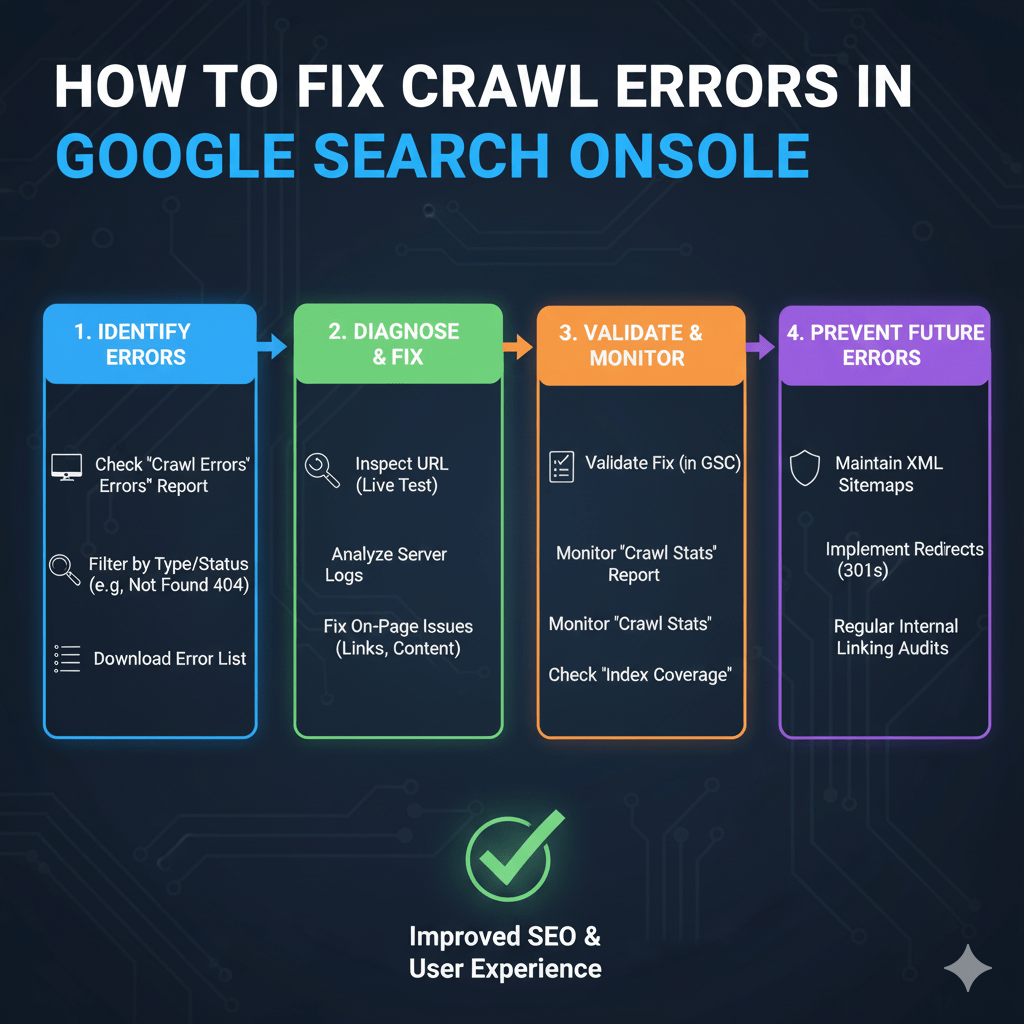
Google Search Console’s Page Indexing report replaced the old Crawl Errors report in 2021, providing more nuanced error categorization. Access it through Search Console > Indexing > Pages.
The report categorizes pages as indexed, not indexed, or indexed despite issues. Click “Not indexed” to see why pages failed indexation—including crawl errors. Filter by error type to focus on specific problems: server errors, 404s, redirect errors, or access issues.
Each error category shows affected URL counts, example URLs, and when Google last encountered the error. This data-driven approach lets you prioritize fixes based on impact rather than guessing which errors matter most.
Understanding Crawl Stats
Navigate to Settings > Crawl Stats to see detailed crawling activity. This report shows total crawl requests, average crawl response time, kilobytes downloaded per day, and host status codes returned.
Crawl stats reveal patterns invisible in the Page Indexing report. A spike in 500 errors during specific hours suggests server capacity problems during traffic peaks. Declining crawl requests indicate Google lost confidence in your site’s reliability. Increasing average response times signal performance degradation affecting crawlability.
According to Google’s documentation on crawl stats, sudden changes in crawling patterns often precede ranking drops. Monitor crawl stats weekly to catch problems before they impact visibility.
Using URL Inspection Tool
The URL Inspection tool checks individual pages on-demand, showing whether Google can access them currently. Enter any URL to see live crawling status, any errors encountered, and the last successful crawl date.
This tool excels at troubleshooting. The Page Indexing report shows historical problems; URL Inspection tests current status. Fix a server error? Test immediately with URL Inspection to confirm resolution before waiting for Google’s next crawl.
The tool also reveals rendering issues, robots.txt blocks, and canonical problems—comprehensive diagnostic data for any URL causing concern. Use it religiously when investigating crawl errors affecting high-value pages.
How to Fix 404 Errors SEO Impact
Identifying Important 404s
Not all 404s deserve fixing. Prioritize based on three factors: internal links pointing to the 404, external backlinks landing on the 404, and organic traffic the page previously received.
A 404 with zero internal links, no backlinks, and no traffic history? Leave it. Google will forget it exists within weeks. A 404 with fifty internal links, ten referring domains, and historical rankings? Fix immediately.
Use crawling tools like Screaming Frog to find internal links pointing to 404s. Check backlink profiles in Ahrefs or Semrush to identify valuable external links hitting dead pages. Review historical traffic in Google Analytics for pages that recently went 404.
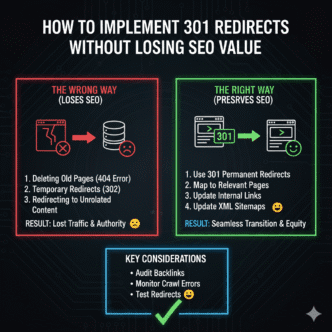
Implementing 301 Redirects
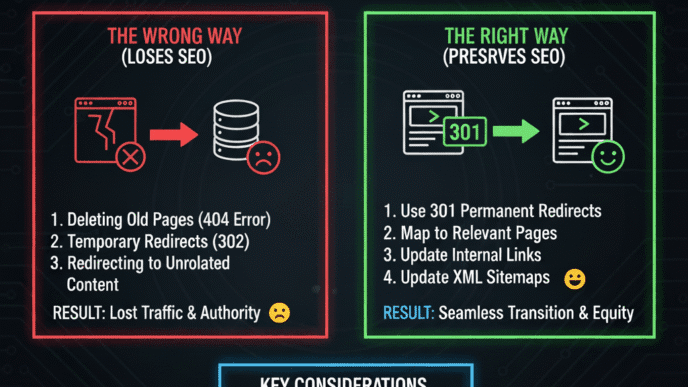
For important 404s, create 301 redirects pointing to relevant replacement content. The redirect target should be the most similar page available—ideally covering the same topic or offering the same product.
Old URL: example.com/discontinued-product
New URL: example.com/similar-current-product (301 redirect)
Never redirect everything to your homepage—that’s lazy and wasteful. Homepage redirects for specific content waste link equity and frustrate users who followed a link expecting specific information.
Implement 301s at the server level (.htaccess for Apache, web.config for IIS) rather than meta refresh or JavaScript redirects. Server-level redirects execute faster and pass more link equity according to Google’s redirect guidelines.
Restoring Deleted Content
Sometimes the fix is simpler: restore the content. If you deleted pages that still receive traffic or hold valuable backlinks, consider bringing them back.
This works particularly well for blog posts with evergreen value, product pages for temporarily out-of-stock items, or category pages you prematurely eliminated. The cost of restoration is often lower than the link equity lost to 404s.
Before restoring, verify the content provides value. Don’t resurrect garbage just to eliminate 404s—that trades one problem for another (thin content).
Fixing Broken Internal Links
Update internal links throughout your site to point to current URLs rather than letting them generate 404s. This prevents crawl budget waste and improves user experience.
<!-- Bad -->
<a href="/old-page-that-404s">Link text</a>

<!-- Good -->
<a href="/current-page">Link text</a>
Run site-wide link audits quarterly to catch broken internal links before they accumulate. Your technical SEO fundamentals should include regular internal link hygiene as standard maintenance.
When to Let 404s Stand
Allow 404s for genuinely deleted content with no value—spam comments, test pages, duplicate content you intentionally removed. Forcing redirects or restoration creates new problems.
Also let 404s stand for external sites linking to incorrect URLs. You can’t control external link quality, and redirecting their mistakes to your homepage wastes resources while confusing users.
Google’s John Mueller explicitly says 404s are natural and expected. Don’t chase perfection—chase problems that actually impact rankings, traffic, or user experience.
Server Error 500 SEO Fixes
Diagnosing Server Error Causes
Server error 500 issues stem from application crashes, database connection failures, resource exhaustion, plugin conflicts, or coding errors. Unlike 404s where the cause is obvious (missing content), 500 errors require investigation.
Start by checking server error logs. Apache error logs, PHP error logs, and application-specific logs contain detailed error messages explaining what broke. Look for patterns: do errors occur during traffic spikes, after specific user actions, or when certain pages load?
Common culprits include memory limit exhaustion (increase PHP memory_limit), database query timeouts (optimize slow queries), plugin conflicts (disable plugins systematically), and server resource caps (upgrade hosting).
Temporary vs Persistent Server Errors
Googlebot treats persistent server errors differently than temporary ones. A single 500 error during a brief server hiccup won’t harm rankings. Consistent 500 errors lasting days tell Google your site is unreliable—triggering ranking drops and crawl rate reductions.
According to a Search Engine Land 2024 study, pages returning 500 errors for more than 72 continuous hours lose an average of 58% of their ranking positions. Time-to-resolution matters enormously.
Monitor error rates rather than individual errors. If 2% of requests return 500 errors, investigate immediately. If 0.01% error occasionally due to random server glitches, that’s acceptable noise in any complex system.
Implementing Error Page Best Practices
When server errors occur, serve proper error pages with helpful content and navigation options. A blank error screen maximizes user frustration; a designed error page with clear messaging minimizes damage.
<h1>We're experiencing technical difficulties</h1>
<p>Our team is working to resolve this issue. Please try again in a few minutes.</p>
<a href="/">Return to homepage</a>
Include your site’s navigation, search functionality, and links to popular content. Users encountering errors should find pathways to other content rather than dead ends forcing them to abandon your site entirely.
Fixing WordPress-Specific Server Errors
WordPress sites commonly experience 500 errors from plugin conflicts, theme issues, .htaccess corruption, or PHP version incompatibility. Systematic troubleshooting isolates the cause.
Disable all plugins and switch to a default theme. If errors stop, reactivate plugins one-by-one until the error returns—identifying the culprit. If errors persist, check .htaccess for corruption (rename it temporarily) and verify PHP version compatibility with WordPress requirements.
Memory exhaustion causes frequent WordPress 500 errors. Increase memory_limit in wp-config.php:
define('WP_MEMORY_LIMIT', '256M');
Most WordPress 500 errors resolve within these first troubleshooting steps. Complex issues might require developer intervention to debug custom code or database problems.
Soft 404 Error Solutions
Detecting Soft 404 Issues
Google Search Console flags soft 404s in the Page Indexing report under “Not found (404)” with the note that the page returned 200 status. This indicates content appears to be an error page but the server claims success.
Common soft 404 triggers include pages with minimal content saying “no results found,” search result pages with zero results returning 200, category pages with no products showing 200 status, or error pages styled to look helpful but technically succeeding.
Test suspected soft 404s by examining HTTP headers. Use browser developer tools or curl to verify status codes:
curl -I https://example.com/suspected-soft-404
If the response shows HTTP/1.1 200 OK for a page that’s clearly an error, you’ve confirmed a soft 404.
Configuring Proper Status Codes
Fix soft 404s by ensuring error pages return correct status codes. Missing content should return 404, not 200. Empty search results should return 200 only if the search functionality worked (even though results are empty).
// PHP example for proper 404 response
header("HTTP/1.1 404 Not Found");
include('404-error-page.php');
exit;
Platform-specific solutions exist for common scenarios. WordPress themes often misconfigure error handling—verify your theme returns proper status codes for 404 pages. E-commerce platforms need configuration ensuring “out of stock” doesn’t trigger soft 404s (stock status differs from page existence).
Thin Content vs Soft 404
Sometimes pages flagged as soft 404s contain real content—just not much of it. Google might interpret thin content as a soft 404 if it’s indistinguishable from an error page.
The fix isn’t changing the status code (the page legitimately exists) but rather enriching the content. Add value: related products, helpful information, navigation options. Transform thin pages into genuinely useful destinations rather than near-empty placeholders.
Crawl Budget Optimization
Understanding Crawl Budget Allocation
Crawl budget is the number of pages Googlebot crawls on your site during a given timeframe, determined by crawl rate limit (how fast Google can crawl without harming your server) and crawl demand (how much Google wants to crawl your site).
Large sites with millions of pages face real crawl budget constraints. Small sites rarely do—Google can crawl a 500-page site completely in one session. Crawl budget optimization matters primarily for sites with 10,000+ pages or significant crawl errors consuming resources.
According to Google’s crawl budget documentation, factors affecting crawl budget include site popularity and staleness (more popular = more crawling), server response time (faster = more crawling), and crawl errors (more errors = less crawling).
Reducing Crawl Budget Waste
Eliminate crawl budget waste by blocking low-value URLs in robots.txt, fixing crawl errors aggressively, implementing proper status codes consistently, and using URL parameters tools in Search Console.
Your sitemap should include only indexable pages—not 404s, noindexed content, or redirected URLs. A clean sitemap guides crawlers toward valuable content rather than wasting budget on dead ends.
Faceted navigation and URL parameters create infinite crawlable URLs on e-commerce sites. Configure URL parameter handling in Search Console to tell Google which parameters to ignore. This prevents crawling thousands of filter combination variations that add no unique value.
Monitoring Crawl Efficiency
Track crawl efficiency through Search Console’s Crawl Stats report. Healthy patterns show stable or increasing crawl rates, low error percentages, and consistent response times. Warning signs include declining crawl rates, rising error rates, or increasing response times.
Calculate your crawl error rate: (total errors / total crawl requests) × 100. Industry benchmarks suggest keeping this below 2% for healthy sites. Above 5% indicates serious problems requiring immediate attention.
Your technical SEO strategy should include monthly crawl budget analysis as standard practice, not crisis management when rankings drop.
Advanced Crawl Error Fixes
Handling Redirect Chains and Loops
Redirect chains occur when URL A redirects to URL B, which redirects to URL C—requiring multiple hops to reach the final destination. Search engines follow chains but waste crawl budget and dilute link equity with each hop.
example.com/page1 → example.com/page2 → example.com/page3
Fix chains by redirecting directly to the final URL:
example.com/page1 → example.com/page3
example.com/page2 → example.com/page3
Redirect loops are worse: page A redirects to page B, which redirects back to page A, creating an infinite loop. Crawlers detect loops quickly and abandon the URLs entirely. Loops typically result from conflicting redirect rules—fix by identifying and removing contradictory rules.
Resolving DNS and Connection Issues
DNS errors require immediate attention since they affect site-wide accessibility. Verify your domain registration hasn’t expired, check DNS records with your registrar for accuracy, test DNS propagation using tools like WhatsMyDNS, and monitor DNS server uptime.
Connection timeouts suggest server performance problems. If Googlebot consistently times out connecting to your server, investigate server load, network issues, firewall rules blocking Googlebot, or hosting capacity constraints.
Premium hosting with guaranteed uptime prevents most DNS and connection issues. Budget hosting often oversells server resources, causing performance problems during traffic spikes that coincide with Googlebot visits—creating crawl errors from capacity constraints.
Managing Temporary Site Downtime
Planned maintenance requiring site downtime should use 503 Service Unavailable status codes with a Retry-After header:
HTTP/1.1 503 Service Unavailable
Retry-After: 3600
This tells search engines “we’re temporarily down, try again in one hour.” Google respects 503 during brief maintenance and won’t immediately drop rankings for short outages.
For extended downtime (more than 24 hours), consider using a maintenance page that returns 200 status with helpful content rather than 503, which signals temporary unavailability that might worry users if prolonged.
Real-World Crawl Error Case Study
An established SaaS company contacted me after organic traffic dropped 47% over two months. No algorithm updates coincided with the decline. No penalty notifications appeared in Search Console. Rankings simply evaporated across hundreds of keywords.
Investigation revealed their hosting provider implemented aggressive DDoS protection without notification. The new security rules blocked Googlebot’s IP ranges, interpreting crawler activity as attack traffic. Every crawl attempt returned 403 Forbidden errors—thousands daily.
Search Console showed the carnage clearly: crawl requests plummeted from 50,000 daily to 3,000 daily within weeks. Crawl stats revealed 87% of requests returned 403 errors. Page Indexing showed previously indexed pages disappearing with “Server error (5xx)” and “Other 4xx issue” reasons.
We worked with hosting to whitelist Googlebot’s IP ranges and adjust security rules. Within 48 hours, successful crawls resumed. Within three weeks, crawl volume returned to previous levels. Within seven weeks, rankings recovered to 94% of pre-crisis levels.
Total cost: approximately $120,000 in lost revenue during the two-month crisis, caused entirely by preventable crawl errors from misconfigured security. A simple weekly crawl stats check would have caught the problem within days rather than months.
Lesson: Monitor crawl health proactively. By the time rankings drop and traffic crashes, you’ve already hemorrhaged weeks of opportunities. Crawl errors are early warning signals—heed them immediately.
Crawl Error Prevention Strategies
Regular Technical SEO Audits
Conduct comprehensive technical audits quarterly using tools like Screaming Frog, Sitebulb, or enterprise solutions. These audits catch crawl errors before search engines encounter them, allowing proactive fixes rather than reactive damage control.
Audit checklist should include status code verification for all pages, internal link validation, redirect chain identification, server response time analysis, robots.txt accessibility testing, and sitemap URL accuracy.
Schedule audits after major site changes—platform migrations, design overhauls, new feature launches. Changes introduce errors. Catching them immediately prevents long-term damage to crawlability.
Monitoring Uptime and Performance
Use uptime monitoring services (UptimeRobot, Pingdom, StatusCake) to alert you immediately when your site goes down. Server errors affecting real users also affect crawlers—catching downtime early minimizes both user and SEO impact.
Performance monitoring reveals degrading response times before they become crawl problems. Google’s crawl budget allocation considers server speed—slow servers get crawled less frequently even without explicit errors.
Core Web Vitals correlate strongly with crawlability. Sites with poor performance metrics face both user experience problems and crawl efficiency issues. Optimize for both simultaneously through your technical SEO implementation.
Implementing Proper Error Handling
Configure custom error pages that return correct status codes, provide helpful content, include site navigation, and maintain your site’s design consistency. Error pages are content—treat them accordingly.
Test error handling regularly. Intentionally request non-existent pages and verify proper 404 responses. Temporarily disable your database connection and confirm proper 500 error handling. Simulate various failure scenarios to ensure error pages work correctly.
Documentation and Change Management
Document all site changes that might affect crawling—new redirect rules, robots.txt updates, server configuration changes, security rule implementations. Documentation enables quick troubleshooting when crawl errors appear after changes.
Implement change management processes requiring crawl impact assessment before deploying modifications. A simple checklist asking “will this affect Googlebot?” prevents many errors from reaching production.
Tools for Crawl Error Management
Google Search Console
The essential free tool providing direct Google perspective on crawl health. Page Indexing shows which pages Google can’t access and why. Crawl Stats reveals crawling patterns and error trends. URL Inspection tests individual pages on-demand.
Check Search Console weekly minimum. Daily checks during site changes or after detecting problems. The data is directly from Google—authoritative and actionable.
Screaming Frog SEO Spider
Desktop crawler simulating search engine behavior to identify errors before Google encounters them. Crawls up to 500 URLs free, unlimited in paid version ($259/year).
Configure Screaming Frog to crawl like Googlebot by setting appropriate user-agent strings. Export reports showing all 404s, 500s, redirect chains, and other crawl obstacles. Use this data to fix problems proactively rather than waiting for Search Console reports.
Log File Analyzers
Server log analysis reveals exactly what crawlers accessed, when, and with what results. Tools like Botify, ContentKing, or custom log parsers provide insights invisible in Search Console.
Logs show crawler behavior in real-time rather than Search Console’s delayed reporting. During crisis troubleshooting, logs provide immediate feedback on whether fixes work without waiting hours for Google to recrawl and update reports.
Comparison: Crawl Error Detection Tools
| Tool | Best For | Price | Update Frequency |
|---|---|---|---|
| Google Search Console | Google’s perspective | Free | Daily (delayed) |
| Screaming Frog | Proactive audits | Free/$259/year | On-demand |
| Sitebulb | Visual crawl analysis | $35-$275/month | On-demand |
| Botify | Enterprise log analysis | Custom pricing | Real-time |
| DeepCrawl | Scheduled monitoring | Custom pricing | Scheduled |
FAQ: Crawl Errors
Do 404 errors directly hurt my SEO rankings?
No, 404 errors themselves don’t cause ranking penalties. Google’s John Mueller has repeatedly stated that 404s are normal and expected as sites evolve. The harm comes from collateral damage: internal links pointing to 404s waste crawl budget, valuable backlinks hitting 404s waste link equity, and users encountering 404s experience poor UX. Fix 404s that matter (those with internal links, backlinks, or traffic history) and ignore 404s for genuinely deleted content with no value.
How quickly should I fix server errors to avoid ranking drops?
Server errors persisting beyond 48-72 hours risk ranking losses. Googlebot retries server errors multiple times before giving up on URLs. Studies show pages with continuous 500 errors for three days lose an average of 58% of rankings. Occasional brief server errors (single digits over hours) typically cause no lasting damage. Persistent errors (double-digit percentages over days) cause serious problems. Monitor error rates and resolve quickly—within 24 hours ideally.
What’s the difference between hard 404 and soft 404 errors?
Hard 404s return proper “404 Not Found” status codes telling search engines the page doesn’t exist. Soft 404s return “200 OK” status (indicating success) despite showing error-like content. Search engines must analyze content to detect soft 404s rather than understanding immediately from status codes. Soft 404s waste more crawl budget and create confusion. Always configure servers to return proper status codes matching actual page states—404 for missing content, 200 only for successful requests.
Can too many crawl errors get my site penalized?
Google doesn’t impose manual penalties for crawl errors, but excessive errors cause algorithmic consequences. High error rates reduce crawl frequency, waste crawl budget on dead pages, create poor user experience signals, and suggest site quality problems. While not penalties per se, these effects reduce organic visibility similarly. Keep error rates below 2% of total requests for healthy crawling. Above 5% indicates problems requiring immediate attention before algorithmic consequences materialize.
How do I prioritize which crawl errors to fix first?
Prioritize by business impact: fix errors affecting revenue-generating pages first (product pages, service pages), then high-traffic content (popular blog posts, landing pages), then pages with valuable backlinks, and finally low-value pages. Server errors always take priority over 404s since server errors affect site-wide crawlability. Use Search Console data showing affected URLs and combine with analytics showing traffic value to create a priority-ranked fix list.
Should I remove URLs with errors from my sitemap?
Yes, absolutely. Sitemaps should only include successfully crawlable, indexable URLs returning 200 status codes. Including 404s or server error URLs in sitemaps wastes crawl budget and sends conflicting signals—your sitemap says “crawl this” while the URL returns an error. Clean your sitemap regularly by removing all URLs that don’t return 200 status. Most CMS platforms and sitemap plugins handle this automatically if configured properly.
Final Verdict: Fix Crawl Errors Before They Fix Your Rankings
Crawl errors operate in the shadows—invisible to users, ignored by competitors, unnoticed until traffic mysteriously vanishes. By the time rankings drop and Search Console screams with errors, you’ve already lost weeks or months of opportunity.
Here’s your battle plan: Check Search Console’s Page Indexing and Crawl Stats weekly minimum, not when crisis strikes. Run comprehensive technical audits quarterly using Screaming Frog or similar tools. Fix server errors within 24 hours—these are code red emergencies. Address 404s strategically, prioritizing those with internal links, backlinks, or traffic history. Implement proper status codes ensuring errors return correct HTTP responses. Monitor uptime and performance continuously with automated alerts.
Document all site changes affecting crawlability. Test thoroughly in staging before deploying to production. Configure proper error pages with helpful content and navigation. Maintain clean sitemaps excluding error URLs. Review crawl budget efficiency monthly for large sites.
The websites dominating search results don’t just have great content and strong backlinks—they have technical foundations allowing search engines to crawl efficiently. Every crawl error represents wasted potential: wasted crawl budget, wasted link equity, wasted user opportunities, wasted rankings.
Your competitors make crawl errors. They ignore Search Console warnings. They let 404s accumulate. They allow server errors to persist. This creates opportunity—not for exploiting their mistakes, but for avoiding them yourself. Clean crawling is competitive advantage masquerading as boring technical maintenance.
Review your crawl health today. Fix what’s broken. Monitor what works. Prevent future problems through systematic audits and change management. Your organic visibility depends on search engines accessing your content successfully—make it effortless for them through proper crawl error management integrated with comprehensive technical SEO fundamentals.
The difference between thriving and dying in organic search often comes down to the technical details nobody sees. Crawl errors are one of those details. Master them, and you’ve eliminated an entire category of ranking obstacles most competitors ignore until it’s too late.