


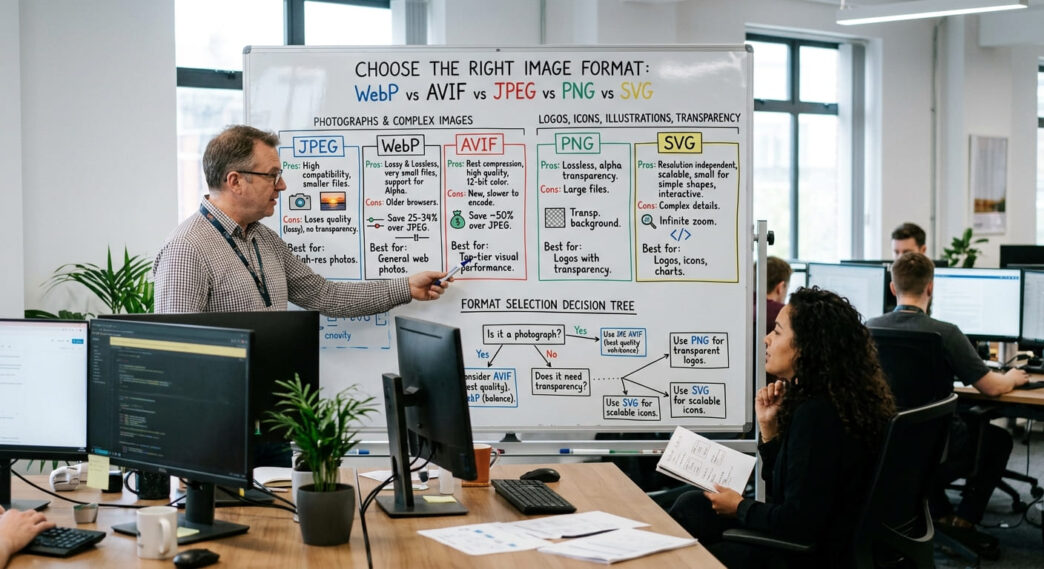
The smallest file in one test is not automatically the right format for every image. A photograph, transparent logo, interface icon and animated illustration store different kinds of visual information. Converting all four to AVIF or WebP can reduce some files while damaging sharp edges, losing editing flexibility or creating an unnecessary fallback problem.
Choose a format from the asset’s behaviour: raster or vector, photographic or graphical, opaque or transparent, still or animated. Then compare quality at the actual display size. Format, dimensions and compression are separate decisions.
This guide compares WebP, AVIF, JPEG, PNG and SVG through a practical decision matrix. It extends the image section of Mastering On-Page SEO Elements without repeating alt-text, Google Images or Core Web Vitals guidance.
Table of Contents
ToggleFormat choice starts with raster and vector artwork
JPEG, PNG, WebP and AVIF are raster formats. They store a grid of pixels. Enlarging a raster file beyond its intended dimensions exposes blur or pixelation because the file contains a fixed pixel grid.
SVG is a vector format. It describes shapes, paths, fills and text through XML. A browser redraws those instructions at the requested size, which suits logos, icons and diagrams with clean geometry. SVG can contain embedded raster content, but that removes much of the reason for choosing vector artwork.
Compression creates another split:
Lossy compression discards visual information to reduce file size. JPEG, WebP and AVIF support lossy encoding.
Lossless compression preserves the encoded pixel information. PNG is lossless; WebP and AVIF can also use lossless modes.
Lossless does not mean visually superior for every job. A photographic PNG can be much larger than a carefully encoded lossy version while looking the same at article size. Lossy does not mean poor quality; the result depends on the encoder, settings, source and viewing conditions.
AISEOjournal.net
Web Image Format Decision Guide
Choose between WebP, AVIF, JPEG, PNG and SVG from the asset’s behaviour—not from a universal format ranking.
Find a practical starting format
JPEG
Model: lossy raster
Best fit: opaque photographs and dependable fallbacks
Constraint: no alpha transparency
PNG
Model: lossless raster
Best fit: screenshots, sharp pixels and transparency
Constraint: heavy for many photographs
WebP
Model: lossy or lossless raster
Best fit: photos, transparency and animation
Constraint: older production tools may need conversion
AVIF
Model: lossy or lossless raster
Best fit: tested quality-at-size delivery
Constraint: encoder and workflow support vary
SVG
Model: vector markup
Best fit: logos, icons and geometric diagrams
Constraint: unsuitable for ordinary photos; sanitise uploads
Capability comparison
| Format | Transparency | Animation | Scales without pixelation | Typical role |
|---|---|---|---|---|
| JPEG | No | No | No | Opaque photography and fallback |
| PNG | Yes | APNG variant | No | Lossless screenshots and raster transparency |
| WebP | Yes | Yes | No | General modern raster delivery |
| AVIF | Yes | Yes | No | Tested quality-at-size delivery |
| SVG | Yes | Via web technologies | Yes | Scalable geometric artwork |
Decision workflow
Drag to pan. Use the controls or mouse wheel to zoom. The recommended route is a testing starting point, not a guaranteed winner.
A decision matrix for five web image formats
| Format | Data model | Transparency | Animation | Strong use cases | Main limitation |
|---|---|---|---|---|---|
| JPEG | Raster; lossy | No | No | Photographs and continuous-tone images needing broad compatibility | No alpha transparency; repeated editing can add artefacts |
| PNG | Raster; lossless | Yes | Not in standard PNG | Screenshots, sharp interface graphics and assets needing lossless transparency | Large photographic files |
| WebP | Raster; lossy or lossless | Yes | Yes | General web photography, graphics and animated assets | Older software workflows may need conversion or fallback handling |
| AVIF | Raster; lossy or lossless | Yes | Yes | Photographs and graphics where AVIF wins a quality-at-size test | Encoding, decoding and workflow support vary; test fallbacks for the required audience |
| SVG | Vector markup | Yes | Yes through web technologies | Logos, icons, diagrams and geometric illustrations that must scale cleanly | Unsuitable for ordinary photographs; untrusted SVG can carry active content |
The MDN image-format guide describes JPEG as a common choice for lossy still images, PNG for precise lossless reproduction and transparency, WebP and AVIF for modern still or animated delivery, and SVG for graphics that must remain accurate at different sizes.
No row declares one universal winner. Start with the asset and compare candidates.
JPEG remains useful for compatible photographic delivery
JPEG works well for photographs, gradients and scenes with many colours. Its long browser and software history also makes it a dependable fallback for modern formats.
Choose JPEG when:
the asset is an opaque photograph;
broad support across browsers, email clients, feeds or editing software matters;
the source needs a dependable fallback inside
picture;a tested JPEG reaches the required visual quality at an acceptable size.
Avoid JPEG for logos, interface screenshots and text-heavy diagrams. Lossy compression can create ringing around letters and hard edges. It also cannot store alpha transparency, so a transparent background becomes a solid colour.
JPEG quality values are encoder-specific. A setting of 75 in one tool does not promise the same output as 75 in another. Compare rendered results rather than copying a universal number.
PNG preserves sharp pixels and transparency
PNG uses lossless compression and supports alpha transparency. It suits screenshots, interface states, diagrams with fine text, and graphics that need exact hard edges.
Choose PNG when:
pixel-level reproduction matters;
the asset needs transparency and a modern alternative does not pass the quality or support test;
a screenshot contains small text or controls that become visibly degraded under lossy compression;
the image has a limited palette or large flat-colour regions that PNG encodes efficiently.
A PNG photograph can carry far more data than the page needs. Test WebP, AVIF or JPEG for photographic content. Lossless modern formats may reduce some graphics, but the result depends on the source.
PNG and SVG are not interchangeable. PNG stores pixels; SVG stores drawing instructions. A 64-pixel PNG icon can soften when enlarged, while a well-made SVG icon stays sharp.
WebP covers photographs, transparency and animation
WebP supports lossy and lossless compression, alpha transparency and animation. This feature range makes it a useful general delivery format for WordPress sites that contain photographs, graphics and lightweight animated assets.
Choose WebP when:
it produces a smaller file than the current JPEG or PNG at matching visual quality;
transparency is required for a raster asset;
an animated WebP improves on the existing animation workflow;
the site’s browser and publishing tools support the format.
WebP is not a reason to retain excessive dimensions. A 4,000-pixel WebP displayed at 700 pixels can still waste transfer and decode work. Generate responsive derivatives and deliver a suitable candidate through srcset.
Older desktop software or downstream systems may not accept WebP even where browsers do. Audit social tools, advertising platforms, email templates and print exports before removing conventional originals from the production workflow.
AVIF can win quality-at-size tests without winning every asset
AVIF is based on the AV1 image format and supports lossy or lossless encoding, transparency, animation and higher bit depths. It can preserve photographic detail at a lower file size than another candidate, but that result must be measured on the actual source.
Choose AVIF when:
a side-by-side comparison shows equal or better perceived quality at a lower weight;
browser and content-pipeline support match the site’s audience;
the encoder preserves important texture, gradients, skin tones and sharp boundaries;
generation time and server capabilities fit the publishing workflow.
AVIF is not always smaller than WebP. Simple graphics, tiny icons, screenshots and certain encoder settings can reverse the result. A smaller AVIF can also look worse through lost texture, colour shifts or edge damage. Compare quality before choosing by bytes.
WordPress added AVIF upload and processing support in version 6.5 where the hosting image library supports it, as documented in the WordPress 6.5 AVIF development note. Server support still matters. Check Site Health and test thumbnail generation rather than assuming an accepted upload proves every derivative was created.
SVG belongs to scalable graphics, not ordinary photography
SVG works well for logos, interface icons, charts, line illustrations and geometric diagrams. One file can remain sharp from a small navigation icon to a high-density display.
Choose SVG when:
the source is genuinely vector-based;
shapes and text must stay crisp at different sizes;
CSS styling or interaction is part of the design;
a compact set of paths describes the artwork more efficiently than a pixel grid.
Do not convert a photograph to SVG through automatic tracing and expect a useful web asset. The result can contain thousands of paths, produce a large file and lose photographic detail.
SVG is markup and can contain scripts, external references and interactive behaviour. WordPress restricts SVG uploads by default because unsafe files can create security risks. Use a controlled sanitisation process and grant upload access only to trusted roles. A raster fallback may also be needed for destinations that do not accept SVG.
Transparency and animation need separate checks
Transparency can mean one fully transparent colour or a smooth alpha channel. PNG, WebP, AVIF and SVG can represent transparency. JPEG cannot.
Test transparent assets against light, dark and patterned backgrounds. Pale edge pixels left from a white matte can create a halo on a dark theme even though the file technically supports alpha transparency.
Animation support differs in tooling and playback characteristics:
WebP and AVIF can store animated raster sequences.
SVG can animate vector properties through CSS, JavaScript or SVG animation features.
standard JPEG and PNG files are still images; APNG is a separate animated PNG format.
Animation adds motion, decode work and accessibility questions. Format selection does not replace controls for pausing, reduced-motion preferences or an equivalent explanation where motion carries information.
Picture supplies ordered alternatives and a fallback
The HTML picture element lets a browser evaluate sources in order and select the first supported match. Keep an img fallback with a real src value, as Google’s image SEO documentation recommends.
<picture>
  <source
    type="image/avif"
    srcset="seo-dashboard-800.avif 800w,
            seo-dashboard-1400.avif 1400w">
  <source
    type="image/webp"
    srcset="seo-dashboard-800.webp 800w,
            seo-dashboard-1400.webp 1400w">
  <img
    src="seo-dashboard-1400.jpg"
    srcset="seo-dashboard-800.jpg 800w,
            seo-dashboard-1400.jpg 1400w"
    sizes="(max-width: 800px) 100vw, 1400px"
    width="1400"
    height="764"
    alt="SEO dashboard showing indexed and excluded page totals">
</picture>
In this example, AVIF is preferred, WebP is second and JPEG is the fallback. This ordering is a delivery policy, not a quality verdict. If WebP preserves a particular screenshot better, put it first or omit AVIF for that asset.
Send the correct MIME type: image/avif, image/webp, image/jpeg, image/png or image/svg+xml. A mismatched server header can cause loading or processing failures even when the filename looks correct. MDN maintains a common media-type reference.
Google can index all five formats
Google’s indexable file-type documentation lists JPEG, PNG, WebP, SVG and AVIF among supported image formats. Format alone does not provide search visibility.
The image must still be accessible through supported markup, served from a stable crawlable URL and placed on a relevant page. A fast AVIF hidden in a CSS background does not become eligible for Google Images through format choice. The preceding cluster article covers image discovery across Google surfaces; this comparison stays focused on file behaviour and delivery.
Use an extension that matches the encoded file type. Renaming photo.jpg to photo.webp does not convert it. Verify the response header and inspect the file with a decoder or image tool.
Test quality at the size users receive
A useful comparison controls the source, dimensions and viewing conditions.
Start from the highest-quality available source rather than a previously compressed derivative.
Resize every candidate to the same pixel dimensions.
Encode JPEG, WebP and AVIF at several settings; include PNG or SVG only where the asset suits them.
Compare files at 100% and at their real layout size.
Inspect faces, gradients, fine lines, small text, shadows and transparent edges.
Record file weight and visual defects rather than the encoder’s quality number alone.
Test on representative mobile and desktop devices.
Check colour, orientation and metadata handling after WordPress creates derivatives.
Stop lowering quality when the file shows damage a reader can notice at the delivered size. The winning format is the lightest candidate that meets the visual, compatibility and workflow requirements for that asset.
WordPress delivery needs verification after conversion
WordPress generates attachment sizes and responsive srcset markup when the theme and image functions request registered sizes. Conversion plugins can create WebP or AVIF alternatives, rewrite URLs, negotiate formats at the server or build picture markup.
Check the published output after enabling a converter:
the original attachment and required derivatives exist;
the
src,srcsetandsizesvalues point to valid files;every URL returns the expected MIME type;
the fallback remains available where the chosen delivery method needs one;
CDN cache keys vary correctly when delivery depends on the browser’s
Acceptheader;social previews and structured data reference a format accepted by the target service;
deleting or replacing an attachment removes stale generated versions.
Do not stack two image-conversion plugins and a CDN rewrite without tracing ownership. Competing layers can create missing files, duplicate work or cache mismatches.
Choose a primary format from the asset
Use this short routing guide:
Photograph: test AVIF and WebP; retain JPEG as a dependable fallback where required.
Screenshot with small text: compare lossless WebP and PNG; test lossy candidates only if text and edges remain clean.
Transparent raster graphic: compare WebP, AVIF and PNG against every background where it will appear.
Logo or interface icon: use sanitised SVG when the source is vector and the destination supports it; keep a PNG fallback for incompatible channels.
Animated raster: compare WebP or AVIF with the playback and support needs; do not treat motion controls as a format feature.
Detailed chart exported as pixels: test PNG or lossless WebP; use SVG when the chart is built from scalable vector elements and can be secured.
Questions about web image formats
Is AVIF always smaller than WebP?
No. The result depends on the source, dimensions, encoder and chosen quality. AVIF can be smaller for one photograph while WebP wins for another asset or preserves detail better at a similar weight. Test both from the same source.
Is WebP better than JPEG for SEO?
Google can index both. WebP can reduce transfer size at matching visual quality, while JPEG supplies broad compatibility and a useful fallback. Search performance depends on the full page and image implementation, not the extension alone.
When should PNG be used instead of JPEG?
Use PNG for lossless screenshots, sharp interface graphics and raster transparency. Use JPEG for opaque photographs where lossy compression produces an acceptable result at a lower weight.
Are fallbacks still needed for AVIF and WebP?
Major current browsers support both, but downstream tools, old devices and specialist environments can differ. Use picture when the audience or publishing chain needs a fallback. Verify actual requirements rather than adding alternatives without a reason.
Can Google index SVG and AVIF images?
Yes. Google lists SVG and AVIF with JPEG, PNG and WebP among supported image formats. The files still need crawlable URLs, supported HTML placement and relevant landing-page context.
Match the format to the visual job
JPEG remains a dependable photographic format and fallback. PNG preserves raster detail and alpha transparency. WebP covers lossy, lossless, transparent and animated delivery. AVIF can produce strong quality-at-size results but must earn its place through testing. SVG is the right model for scalable geometric artwork when the file is trusted and sanitised.
Choose dimensions first, encode several candidates from one source, compare them at the delivered size and verify the published WordPress markup. That process produces a defensible format decision without invented savings percentages or one setting applied across the media library.
For connected guidance on metadata, HTML and image elements, return to Mastering On-Page SEO Elements: Meta Tags, HTML, and Image Optimization Explained.