



An article page can contain valid JSON-LD and still describe its image badly. One script may call the post a BlogPosting, another may create a separate Article, and a third may attach a different featured image. Each block can pass a syntax check while the combined page presents conflicting dates, URLs or entities.
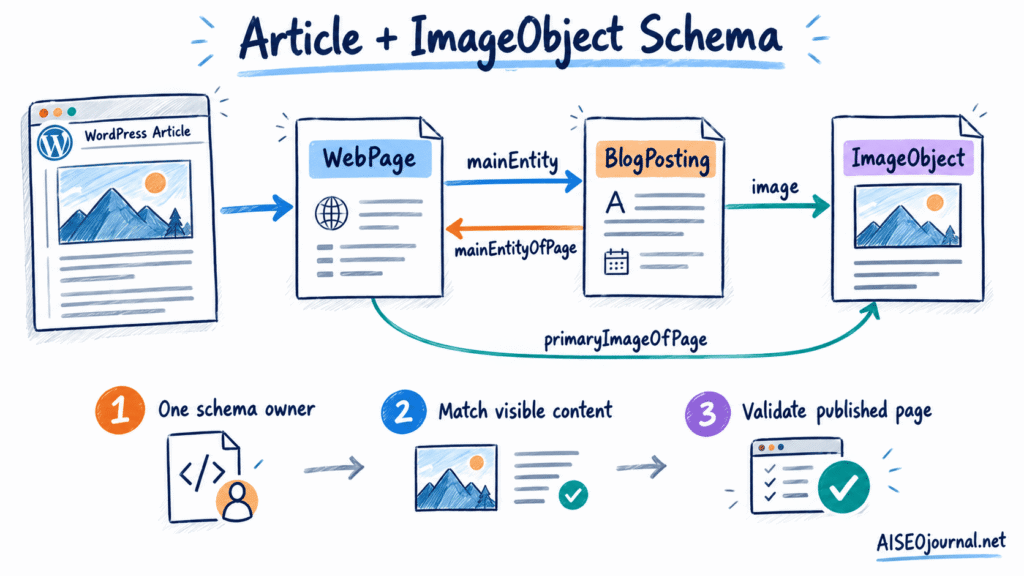
Image schema markup works best as part of one connected graph. The article references its visual asset, the page identifies its primary image, and each entity uses a stable @id. Properties must match the visible article and the media file that users can access.
This guide explains that operational pattern for WordPress and Elementor. It concentrates on Article, BlogPosting, WebPage and ImageObject. For the broader relationship between metadata, HTML and visual assets, read Mastering On-Page SEO Elements.
Table of Contents
ToggleImage schema describes an entity, not an HTML element
An HTML <img> element tells a browser how to fetch and present an image. An ImageObject describes the image as a structured-data entity. The two should agree, but they serve different systems.
The HTML can include src, srcset, sizes, width, height, loading and alt. JSON-LD can identify the image through contentUrl, provide dimensions and caption text, and connect it to an article or web page. Adding ImageObject does not repair inaccessible HTML, missing files, unsuitable alt text or slow image delivery.
Google’s Article structured-data documentation accepts Article, NewsArticle or BlogPosting for article objects. For a normal editorial blog post, BlogPosting is more specific than the parent Article type and remains within Google’s supported model.
The same documentation accepts an ImageObject or URL for the image property. Choose the form that matches the information you can maintain accurately.
Connect the article, page and image with stable identifiers
A coherent graph distinguishes three jobs:
| Entity | What it represents | Core relationship |
|---|---|---|
WebPage | The canonical webpage | mainEntity points to the article |
BlogPosting or Article | The editorial work on that page | mainEntityOfPage points back to the webpage; image points to the visual asset |
ImageObject | The primary visual asset | contentUrl identifies the image file |
Use absolute canonical URLs for @id values. A fragment keeps entity IDs distinct without creating separate pages:
https://example.com/post/#webpage
https://example.com/post/#article
https://example.com/post/#primaryimage
The @id is an identifier, not necessarily a browser destination. Reuse the exact same value every time the graph refers to that entity. A one-character difference creates a different node.
The page-to-article connection is reciprocal:
{
  "@type": "WebPage",
  "@id": "https://example.com/post/#webpage",
  "mainEntity": { "@id": "https://example.com/post/#article" },
  "primaryImageOfPage": { "@id": "https://example.com/post/#primaryimage" }
}
{
"@type": "BlogPosting",
"@id": "https://example.com/post/#article",
"mainEntityOfPage": { "@id": "https://example.com/post/#webpage" },
"image": { "@id": "https://example.com/post/#primaryimage" }
}primaryImageOfPage belongs to WebPage and identifies its principal image. image on BlogPosting connects the editorial work to a representative image. Both properties can reference the same ImageObject when the featured visual is the article’s primary image.
Add properties that match the real media file
An ImageObject can be compact:
{
  "@type": "ImageObject",
  "@id": "https://example.com/post/#primaryimage",
  "url": "https://example.com/media/article-image-1400x788.jpg",
  "contentUrl": "https://example.com/media/article-image-1400x788.jpg",
  "width": 1400,
  "height": 788,
  "caption": "Connected Article, WebPage and ImageObject schema graph"
}
Use each property for its stated role:
contentUrlpoints to the actual media file.urlcan identify the image object or image resource. Using the file URL for bothurlandcontentUrlis a common compact pattern.widthandheightstate the file dimensions represented by that node.captionsupplies a caption when the page genuinely presents or supports that description.encodingFormatcan state a media type such asimage/jpegwhen the server and file match it.
Do not copy dimensions from a design brief after WordPress has cropped the uploaded image. Open the final media URL or inspect the attachment metadata. If the schema points to a 1400 × 788 derivative, do not declare the 2400 × 1350 dimensions of its original.
Dimensions are not required by Google’s current Article property table. They still improve entity precision when maintained correctly. Omit uncertain metadata rather than publishing false values.
The image URL must be crawlable and indexable, use a format supported by Google Images and represent the marked-up article. A logo should not replace the article image merely because its URL is stable.
A URL is valid, but ImageObject carries more detail
Google supports either of these Article.image patterns:
"image": "https://example.com/media/article-image.jpg""image": { "@id": "https://example.com/post/#primaryimage" }Use a URL when the only reliable fact is the representative file location. Use an ImageObject when the graph needs dimensions, a caption, a content URL or a shared entity referenced by primaryImageOfPage.
Do not embed a full copy of the image object under every property. Define it once in @graph, give it an @id, and reference that ID. This makes conflicts easier to detect and updates easier to control.
An ImageObject does not create eligibility by itself. It supplies structured information. Google states that correct markup does not guarantee a search feature, and its structured-data guidelines require marked-up content to represent visible page content.
Represent multiple image ratios as separate assets
Google recommends high-resolution representative images in 16:9, 4:3 and 1:1 ratios for Article markup, with at least 50,000 pixels when width is multiplied by height. This is a recommendation for coverage, not permission to label one crop with three ratios.
If the editorial image exists as three real, crawlable crops, image can hold an array:
"image": [
  "https://example.com/media/article-1x1.jpg",
  "https://example.com/media/article-4x3.jpg",
  "https://example.com/media/article-16x9.jpg"
]
Each URL must resolve to its declared asset. When dimensions or captions differ, define three ImageObject nodes and reference their IDs:
"image": [
  { "@id": "https://example.com/post/#image-1x1" },
  { "@id": "https://example.com/post/#image-4x3" },
  { "@id": "https://example.com/post/#image-16x9" }
]
The page can still select one node as primaryImageOfPage. Multiple article images do not mean the webpage has several primary images.
Do not invent crop URLs based on WordPress filename conventions. Confirm that each derivative exists, returns an image response and remains publicly accessible. Media-regeneration tools and CDN rewrites can change derivative availability.
A connected JSON-LD graph for an article image
The following example shows the core connections. Production markup may also contain publisher, author, breadcrumb and website nodes, but those additions must reuse consistent IDs.
<script type="application/ld+json">
{
  "@context": "https://schema.org",
  "@graph": [
    {
      "@type": "ImageObject",
      "@id": "https://example.com/post/#primaryimage",
      "url": "https://example.com/media/hero-1400x788.jpg",
      "contentUrl": "https://example.com/media/hero-1400x788.jpg",
      "width": 1400,
      "height": 788,
      "caption": "Article and image schema relationship diagram"
    },
    {
      "@type": "WebPage",
      "@id": "https://example.com/post/#webpage",
      "url": "https://example.com/post/",
      "name": "Article and ImageObject Schema",
      "mainEntity": { "@id": "https://example.com/post/#article" },
      "primaryImageOfPage": { "@id": "https://example.com/post/#primaryimage" }
    },
    {
      "@type": "BlogPosting",
      "@id": "https://example.com/post/#article",
      "url": "https://example.com/post/",
      "mainEntityOfPage": { "@id": "https://example.com/post/#webpage" },
      "headline": "Article and ImageObject Schema",
      "image": { "@id": "https://example.com/post/#primaryimage" },
      "datePublished": "2026-09-01T09:00:00+00:00",
      "dateModified": "2026-09-01T09:00:00+00:00",
      "author": { "@id": "https://example.com/#author" },
      "publisher": { "@id": "https://example.com/#organization" }
    }
  ]
}
</script>
This graph does not claim that the picture is original research, licensed under a specific agreement or created by a named person. Add creator, credit or licence properties only when the page and rights records support them.
Give one WordPress layer ownership of the graph
WordPress can receive structured data from a theme, SEO plugin, schema plugin, page-builder widget, header injection tool or custom PHP. Duplicate scripts arise when more than one layer owns the same article entity.
Create a schema-ownership record before adding custom JSON-LD:
| Schema area | Owner | Check |
|---|---|---|
| Website and publisher | SEO plugin or custom site graph | One stable organisation and website ID |
| Article and webpage | One selected generator | Canonical URL, headline, author and dates match |
| Primary image | Same graph owner or linked extension | One image ID with correct file metadata |
| Breadcrumbs | Theme, SEO plugin or custom graph | One ordered trail that matches navigation |
“One owner” does not require one script element. Separate scripts can merge through shared @id values, but this demands strict coordination. In ordinary WordPress administration, one generator per schema area is safer.
Check both page source and the rendered document. Search for:
application/ld+json
BlogPosting
Article
ImageObject
#article
#primaryimage
List every node that describes the current canonical URL. Compare its @id, type, headline, image, author, dates and publisher. Two BlogPosting nodes with different IDs can describe the same post as separate entities. The same @id with conflicting property values creates a different problem: consumers must reconcile incompatible statements.
Disable the unwanted generator at its source. Deleting one visible script through front-end JavaScript leaves needless work and may not match what crawlers process. Use plugin settings, theme filters or the custom integration that created the output.
Compare markup with visible content and media metadata
Syntax validation cannot confirm editorial truth. Run a field-by-field comparison:
urlandmainEntityOfPagematch the canonical post URL;headlinematches the article heading without promotional additions;author and reviewer appear on the page when marked up;
published and modified timestamps reflect real editorial dates;
imageidentifies a representative visual used for the article;contentUrlloads without authentication or blocking;width, height, file type and crop match the referenced file;
caption and credit statements agree with visible information;
the image is not blocked from crawling or excluded by an access rule.
This comparison should be repeated after changing a featured image, regenerating thumbnails, migrating a CDN or altering the post URL.
Validate syntax, eligibility and the published page
Use a layered workflow:
Parse the JSON before deployment. Invalid commas, quotation marks or copied comments can break a script.
Run the code or public URL through the Schema Markup Validator to inspect Schema.org types and relationships.
Use Google’s Rich Results Test to check Google-supported Article properties and detected errors.
Inspect the published source for duplicate JSON-LD blocks and conflicting article nodes.
Request each image URL and verify the response, format and dimensions.
Compare the graph with the visible article, canonical tag and author page.
Use Search Console URL Inspection after publication to inspect the version Google can retrieve.
Recheck after theme, plugin, CDN or media-library changes.
A clean validator result proves that the tested markup can be parsed against its rules. It does not guarantee a rich result, ranking improvement, Knowledge Graph inclusion or citation by an AI system.
Questions about Article and ImageObject markup
Should Article.image use a URL or ImageObject?
Google accepts either. Use a URL for a compact reference to a representative image. Use ImageObject when you can maintain accurate dimensions, caption, content URL or shared graph relationships.
Are image dimensions required in Article schema?
No. Google’s current Article documentation does not list width and height as required properties. Accurate dimensions can make an ImageObject more precise; false dimensions should be omitted.
How should multiple image ratios be marked up?
Add the real 1:1, 4:3 and 16:9 asset URLs to an image array, or reference separate ImageObject nodes. Do not claim ratios or derivative URLs that do not exist.
What does primaryImageOfPage mean?
It is a WebPage property that identifies the page’s primary ImageObject. On an article page, it can point to the same image entity referenced by BlogPosting.image.
How can duplicate WordPress schema be detected?
Inspect page source and the rendered document for every JSON-LD script. Compare all Article, BlogPosting, WebPage and ImageObject nodes by canonical URL and @id, then disable overlapping output at the plugin, theme or custom-code source.
One graph should describe one consistent article
Article image markup succeeds when its entities agree. The WebPage identifies its main article and primary image; the BlogPosting points back to the page and references the same visual; the ImageObject describes a file that exists with matching metadata.
Assign ownership before adding code, use stable identifiers, compare structured properties with visible content and validate the public output. That process prevents the most expensive schema error in WordPress: multiple systems publishing different versions of the same article.