

modified 8 June, 2026
Most WordPress sites have an SEO problem nobody talks about.
It’s not bad content. It’s not missing backlinks. It’s that the site was never properly set up for Google to find in the first place.
The “Discourage search engines from indexing this site” checkbox in Settings → Reading? Left checked from development. The sitemap? Never submitted. SSL? Active but not enforced on every URL. The permalink structure? Still generating ugly URLs like yoursite.com/?p=123 instead of clean ones Google can read.
These aren’t small issues. They’re the reason a well-written site sits on page 4 while worse content ranks above it.
WordPress SEO is the practice of configuring, optimising, and maintaining a WordPress website so Google can find, index, and rank its pages — and so AI-powered answer engines like Google AI Overviews and Perplexity can cite it as a trusted source. It’s four layers applied in a specific order: technical setup first, then plugin configuration, then content optimisation, then site speed. Get the order wrong and each layer underperforms.
Here’s what separates sites that rank from sites that don’t: the boring setup work nobody wants to do. The configuration steps. The speed fixes. The settings most guides skip past in two paragraphs.
Working through WordPress SEO audits regularly, the pattern is the same every time — sites where the content is genuinely good but the foundation was never finished. Google can’t rank what it can’t properly read.
This pillar covers every layer of WordPress SEO from the first setting on a new install to the content strategy that builds traffic over time. The cluster posts in this series go deeper on each individual topic as they go live.
Post Summary
- WordPress SEO needs four layers in order: technical configuration, plugin setup, content optimisation, and site speed. Skip one and the others underdeliver.
- The CORE Setup Framework organises these four layers — Configuration, Optimisation, Retrieval readiness, Execution — so nothing gets missed and nothing gets done in the wrong order.
- Rank Math’s free tier includes redirect management and 5-keyword tracking that Yoast charges $99/year for — making it the better starting point for new sites on a tight budget.
- Google’s Core Web Vitals pass/fail thresholds are LCP under 2.5 seconds, INP under 200ms, and CLS under 0.1 — fail any one and you’re carrying a ranking disadvantage in mobile-first indexing.
- Standard WordPress schema types — Article, FAQPage, HowTo — are handled automatically by your SEO plugin with no manual code needed.
- The full technical setup in this pillar takes about 3–4 hours on a new WordPress site.
- Each layer is covered in depth across the cluster posts in this series as they go live.
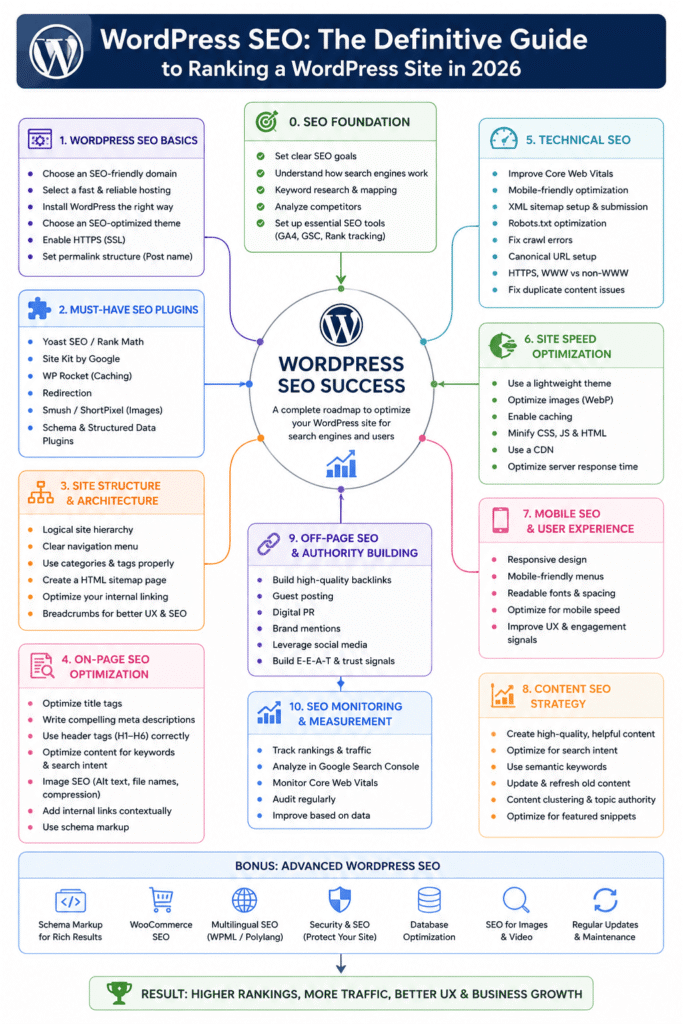
Table of Contents
ToggleWhy WordPress Sites Start at a Disadvantage (Even Before You Publish)
WordPress runs 43% of all websites on the internet (Source: W3Techs, 2024).
That’s an enormous number — and it means the default install is built for the average user, not for ranking. The defaults look fine. Underneath, several of them quietly work against you.
What WordPress gets right out of the box — and what it quietly gets wrong
WordPress generates valid HTML, supports clean URLs, and makes publishing content straightforward. That’s genuinely useful.
What it doesn’t do out of the box: submit your sitemap to Google, enforce HTTPS across every page, set a production-ready robots.txt, or add canonical tags to stop duplicate content problems.
The most common trap? The “Discourage search engines” checkbox in Settings → Reading. It exists so you can build privately before launch. The problem is people forget to uncheck it. Google finds the site, sees the instruction, and stays away. Months pass. No impressions in Search Console. No rankings. Just silence — and a confused site owner wondering what went wrong.
What does WordPress SEO actually need to work?
Three things need to be true for a WordPress page to rank.
Google has to be able to crawl it — correct robots.txt, no accidental noindex tags on important pages, HTTPS working everywhere, a submitted sitemap.
Google has to understand what it’s about — a clear title tag with the right keyword, headings that signal the topic, meta descriptions that match what the searcher wants, and schema that tells Google what type of content it’s reading.
The page has to be worth ranking — more specific, more useful, and more directly answering the query than what’s already on page one.
Fix the first condition before touching the other two. It doesn’t matter how good the content is if Google can’t reliably access it.
The CORE Setup Framework — Four Layers Every WordPress Site Needs
WordPress SEO isn’t a checklist you run once and forget.
It’s a four-layer system where each layer builds on the previous one. Jumping to content strategy before fixing technical issues is the single biggest reason WordPress sites plateau and stop growing.
The CORE Setup Framework puts the four layers in the right order.
C — Configuration. SSL, permalink structure, sitemap, Google Search Console, robots.txt, canonical URLs. This is the technical foundation. Do it before writing a single post. It takes about 3 hours and applies to every page on the site permanently.
O — Optimisation. Title tags, meta descriptions, heading structure, image ALT text, internal linking, schema markup. Your SEO plugin handles the mechanics — your job is filling those fields with the right content on every post you publish.
R — Retrieval readiness. Caching, CDN, image compression, Core Web Vitals. This layer determines whether Google sees your site as fast or slow in its mobile-first ranking system. One good afternoon’s work here removes a ranking disadvantage that affects every single page.
E — Execution. Keyword research, search intent, topical coverage, content refresh cycles. This is the layer that compounds — done right, each new post builds on the authority of the ones before it.
Work through them in that order. Every time. Skipping to E without finishing C is like writing a great product description for a shop that Google can’t find.
How the CORE Setup Framework fits into your publishing schedule
Complete C and R before the first post goes live. Complete O as part of publishing every new post. Return to E monthly — new keyword research, updates to existing posts, gap analysis.
This sequence means every post lands on a foundation that’s already working, not one that’s still being figured out.
Which WordPress SEO Plugin Should You Install?
You need an SEO plugin. WordPress core doesn’t include title tag editing, meta description fields, XML sitemap generation, or schema markup. An SEO plugin adds all of it.
Two plugins dominate this space with large install bases, active development, and full compatibility with Google Search Console: Yoast SEO and Rank Math. Install one. Never both — they conflict on schema output and duplicate critical meta tags.
Yoast SEO — what it does well and where the free version stops
Yoast has over 10 million active installations and has been the market standard since 2010 (Source: WordPress.org Plugin Directory, 2024).
The free version gives you title and meta description editing with a live SERP preview, XML sitemap generation, breadcrumb navigation, Article schema, and a content scoring tool that grades each post against a focus keyword. The interface is the clearest of any SEO plugin — a traffic-light score on every post makes it easy to see what needs attention.
Where the free version stops: redirect management is premium ($99/year), multi-keyword targeting is premium, and schema customisation is more limited than Rank Math’s free offering.
Rank Math — more features free than Yoast charges for
Rank Math launched in 2018 and built its free tier to directly undercut Yoast’s paid features.
Rank Math free gives you: a redirect manager with 404 monitoring, multi-keyword tracking for up to 5 focus keywords per post, a full schema builder UI, Google Search Console integration inside WordPress, and local SEO fields. For a new site that needs redirects managed and wants to track multiple keywords without a subscription, Rank Math free covers more ground.
The trade-off is the interface. Rank Math exposes a lot of settings by default. For a complete beginner, Yoast’s simpler layout is less likely to cause a misconfiguration.
Yoast SEO vs Rank Math — what actually matters for a new site
This table covers the features that make a practical difference. The gaps in Yoast’s free tier are where most growing sites eventually feel the friction.
| Feature | Yoast Free | Rank Math Free |
|---|---|---|
| Title + meta description editing | Yes | Yes |
| XML sitemap | Yes | Yes |
| Breadcrumbs | Yes | Yes |
| Article schema (automatic) | Yes | Yes |
| FAQPage + HowTo schema | Premium | Yes |
| Redirect manager | Premium ($99/yr) | Yes |
| Multi-keyword targeting | 1 keyword only | Up to 5 keywords |
| Google Search Console inside WP | No | Yes |
| Local SEO schema fields | Premium | Yes |
| Schema builder UI | Basic | Full |
| 404 monitoring | Premium | Yes |
The practical call: New site, no redirect history, no budget — use Rank Math free. Already running Yoast with established redirects and a team that knows it — stay on Yoast and upgrade when redirect management becomes a problem.
Pro Tip: After installing either plugin, run the full setup wizard before publishing anything. It sets your homepage title, connects your social profiles, and configures your default schema type. Skipping it leaves those fields blank — and Google fills them in from whatever text it finds on the page, which is rarely what you want shown in search results.
The Configuration Layer — Every Technical Setting That Matters
The Configuration layer is where most WordPress SEO guides spend the least time. That’s a mistake.
Get these settings wrong and every hour of content work produces less result than it should. Get them right once and they apply to every page on the site, permanently. It’s the highest-leverage work you can do.
Step 1: Turn on HTTPS and make sure it covers every URL
HTTPS is a confirmed Google ranking signal — Google said so publicly in 2014 (Source: Google Search Central Blog, 2014).
Every major managed WordPress host — Kinsta, WP Engine, SiteGround — includes a free SSL certificate through Let’s Encrypt. Activate it in your hosting dashboard, then make sure every HTTP URL automatically redirects to its HTTPS version. Your SEO plugin’s site URL settings handle this, or Cloudflare’s SSL/TLS settings if you’re using Cloudflare.
After activating HTTPS, run a quick crawl with the free version of Screaming Frog or Ahrefs Webmaster Tools to find any remaining internal HTTP links. One HTTP link on an otherwise HTTPS page triggers a mixed-content warning in Chrome — and that affects Core Web Vitals scores.
Step 2: Fix your permalink structure right now
Go to Settings → Permalinks in your WordPress dashboard. Select Post Name.
This changes URLs from yoursite.com/?p=123 to yoursite.com/your-post-title/. Clean, readable URLs that contain the post title are easier to share, easier for Google to understand, and include the keywords that signal what the page is about.
One important rule if you’re doing this on an existing site: set up 301 redirects from your old URLs to the new ones before making the switch. Changing URLs without redirects breaks every backlink pointing to the old addresses and temporarily hurts rankings for those pages. Your SEO plugin’s redirect manager handles this — another reason to have Rank Math or Yoast Premium set up before you make structural changes.
Step 3: Set up Google Search Console — it’s your direct line to Google
Google Search Console is free. It’s also the most important tool you have for WordPress SEO.
Verify your site by adding the HTML verification tag to your SEO plugin’s Webmaster Tools field. Verification takes up to 24 hours. Once you’re verified, go to Sitemaps → Add a new sitemap and enter sitemap_index.xml. With Yoast SEO or Rank Math installed, your full sitemap is already waiting at yoursite.com/sitemap_index.xml.
GSC shows you which queries bring visitors, which pages are indexed, which pages have errors, your Core Web Vitals scores, and any manual penalties Google has applied. Check it every single week. The data here isn’t available anywhere else.
Step 4: Check your robots.txt isn’t blocking anything important
Your robots.txt file is at yoursite.com/robots.txt. It tells crawlers which pages to visit and which to skip.
WordPress generates a default robots.txt automatically. Both Yoast and Rank Math let you edit it from inside WordPress. The default is usually fine — the danger is a leftover Disallow: / from a development environment that tells every search engine to leave the entire site alone.
It’s one line. It’s easy to miss. It can keep a site unindexed for months.
Step 5: Fix canonical URLs to stop WordPress duplicating your content
WordPress can serve the same post at several different URLs without you realising.
A single post might be accessible at the clean permalink, the old numeric URL, the category-prefixed version, and the author archive version — all at the same time. Without a canonical tag, Google sees multiple copies of the same content and has to guess which one to rank.
Your SEO plugin adds a canonical tag automatically, pointing Google to the preferred URL. It works out of the box once the plugin is configured. The setup wizard handles this.
Category archives are worth indexing if each category has 10+ posts with a clear topical focus. Tag archives are usually worth noindexing — most WordPress sites accumulate dozens of tag pages with one or two posts each, which creates thin content and dilutes crawl budget.
Pro Tip: After completing the Configuration layer, use Google’s URL Inspection tool in Search Console on your homepage and your most important post. It shows exactly how Googlebot sees each page — which URL is canonical, whether it’s indexed, and when it was last crawled. Any surprises here tell you something’s still not right.
Site Speed and Core Web Vitals — How to Fix a Slow WordPress Site
Speed became a confirmed ranking factor through Google’s Page Experience update in 2021 (Source: Google Search Central Blog, 2021). The specific measure Google uses is Core Web Vitals — three user experience metrics with pass/fail thresholds.
Google uses mobile-first indexing. It evaluates your mobile version first when deciding how to rank your site. A slow mobile site carries a ranking disadvantage that affects every page — regardless of content quality.
What the three Core Web Vitals metrics actually measure
LCP — Largest Contentful Paint. How long does it take for the biggest visible element to load? Pass: under 2.5 seconds. Needs work: 2.5–4.0 seconds. Fail: over 4.0 seconds. On most WordPress sites, the LCP element is the hero image or the first large block of text.
INP — Interaction to Next Paint. How quickly does the page respond when someone clicks or taps? Pass: under 200ms. Fail: over 500ms. INP replaced the older First Input Delay metric in March 2024 (Source: Google Search Central Blog, 2024). Poor INP scores on WordPress sites usually come from heavy JavaScript — often from page builders or poorly optimised plugins.
CLS — Cumulative Layout Shift. How much does the page jump around as it loads? Pass: under 0.1. Fail: over 0.25. The most common CLS cause on WordPress sites is images without defined width and height attributes — the browser doesn’t know how much space to reserve until the image loads, so everything shifts.
Check your scores in Google Search Console under Core Web Vitals, or run individual pages through PageSpeed Insights at pagespeed.web.dev.
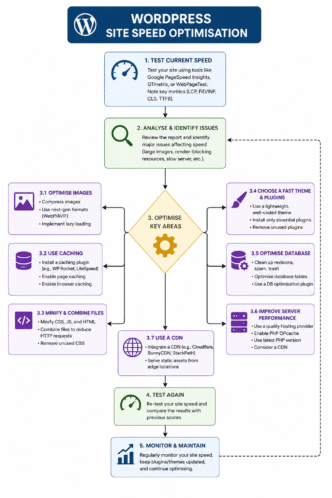
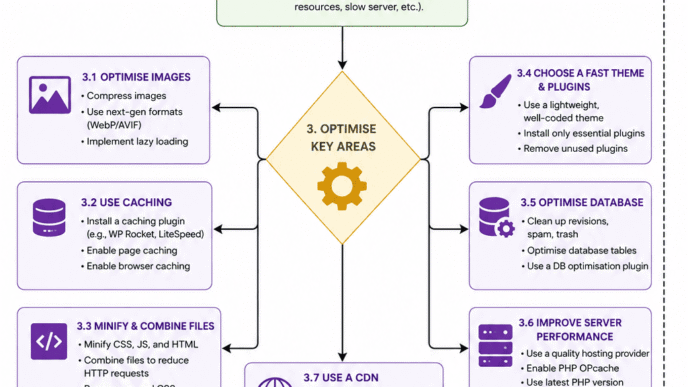
Fix 1: Install a caching plugin — this is your highest-impact move
Without caching, WordPress builds every page from scratch on every visit — querying the database, running PHP, assembling HTML, then sending it to the browser. On shared hosting with any real traffic, this is slow.
Caching stores a pre-built HTML version of each page and serves it directly. No database query. No PHP processing. For most WordPress sites, caching alone takes LCP from 4–6 seconds down to under 2 seconds.
WP Rocket ($59/year) is the most consistently reliable option. It handles caching, CSS and JavaScript minification, lazy loading, and database optimisation in one plugin with a guided setup. It’s worth the cost.
Free options that work: LiteSpeed Cache on LiteSpeed servers (ask your host if you have one), W3 Total Cache on shared hosting where LiteSpeed isn’t available.
Fix 2: Add a CDN — serve files faster to everyone
A CDN stores copies of your static files — CSS, JavaScript, images — on servers in multiple locations. When someone visits your site, those files serve from whichever server is closest to them geographically.
Cloudflare is free for the basic tier and is the most widely used CDN for WordPress sites. Sign up, point your domain nameservers to Cloudflare, and activate the CDN. Takes about 30 minutes. As a bonus, Cloudflare’s free tier blocks a significant volume of malicious bot traffic before it ever reaches your server.
If you’re on managed hosting with Kinsta or WP Engine, their built-in CDN is already available — activate it in the hosting dashboard before adding Cloudflare on top.
Fix 3: Compress your images — the most common LCP problem
An uncompressed photo straight from a camera might be 4–8MB. The same image compressed and converted to WebP is typically 200–400KB with no visible quality difference. WebP images are 25–35% smaller than equivalent JPEGs (Source: Google Web Fundamentals, 2023).
Install ShortPixel or Smush to compress images automatically on upload and convert to WebP. Both work retroactively — run the bulk compression tool after installation to process everything already in your media library.
For the CLS problem, make sure all images have explicit width and height attributes. Most modern image optimisation plugins add these automatically.
Core Web Vitals quick-fix reference
| Failing metric | Most common cause | Primary fix |
|---|---|---|
| LCP over 2.5s | No caching | Install WP Rocket or LiteSpeed Cache |
| LCP over 2.5s | Uncompressed hero image | Compress images, convert to WebP |
| LCP over 2.5s | Slow server response | Upgrade hosting or switch to managed WordPress host |
| INP over 200ms | Heavy JavaScript from plugins | Defer non-critical JS in WP Rocket settings |
| INP over 200ms | Page builder overhead | Pair Elementor with WP Rocket + Cloudflare |
| CLS over 0.1 | Images without dimensions | Add width + height attributes via image plugin |
| CLS over 0.1 | Web fonts shifting layout | Add font-display: swap to theme CSS |
Pro Tip: Run PageSpeed Insights on 3 pages specifically — your homepage, your highest-traffic post, and one recently published post. Scores vary significantly by page type. A passing homepage doesn’t mean all posts pass, and a failing post doesn’t mean the homepage fails. Fix failing pages one by one, starting with the ones getting the most impressions in Search Console.
On-Page SEO for WordPress — What to Do on Every Post You Publish
On-page SEO is the work you do at the individual post level. Your SEO plugin puts the main fields directly in the post editor. What you put in those fields is what determines whether the post ranks.
Writing a title tag that ranks and gets clicked
The title tag is the blue link text in Google search results. It’s one of the strongest on-page signals Google uses to understand what a page is about.
Three rules that matter in practice:
Put the primary keyword within the first 40 characters. Google reads left to right and truncates at around 60 characters — front-load what matters.
Make the title specific. How to Speed Up WordPress in 2026 (5 Fixes That Work)” tells Google and the reader exactly what the page delivers. WordPress Speed Tips” tells them almost nothing.
Stay under 60 characters so the title doesn’t get cut off in search results. Your SEO plugin shows a live SERP preview and a character counter on every post.
Before and after:
❌ “WordPress Tips and Tricks for Beginners — Learn SEO and Get Started Today” (No specific promise, gets truncated at “Beginners,” keyword buried)
✅ “WordPress SEO Setup: 8 Settings to Change Before You Publish” (Keyword near start, specific promise, under 60 characters)
Writing a meta description people actually click
The meta description appears under your title in search results. Google doesn’t use it as a direct ranking signal — but it directly affects whether someone clicks your result after seeing it.
A good meta description states the specific value of the page in 150–160 characters, includes the primary keyword (so it gets bolded when it matches the user’s search), and gives a clear reason to click.
Before and after:
❌ “Learn about WordPress SEO in this comprehensive guide. We cover everything you need to know.” (Vague, “comprehensive” and “everything” are red flags, no specific promise)
✅ “Set up WordPress SEO correctly in 2026 — plugins, speed, sitemaps, and schema — with a step-by-step checklist for each layer.” (Specific, keyword present, clear benefit, within character limit)
Heading structure, ALT text, and internal links — the three things most beginners skip
Headings. WordPress sets your post title as the H1 automatically. One H1 per page. H2s cover the main sections. H3s cover sub-points within those sections. No H4s in body content — the structure loses meaning below H3.
LSI keywords belong in H2 headings where they fit naturally. For a WordPress SEO post, headings like “WordPress SEO plugins,” “WordPress site speed optimisation,” and “WordPress technical SEO setup” are all legitimate H2s — each signals a distinct subtopic Google expects to see covered.
Image ALT text. Every image needs ALT text that describes what’s in it. For an image showing the Rank Math dashboard:
❌ screenshot or blank ✅ Rank Math SEO plugin showing a content score of 82/100 for a WordPress post in the post editor
Include the primary keyword in ALT text where it fits naturally. One or two keyword-containing ALT tags per post is appropriate. Forcing it on every image is keyword stuffing.
Internal links. Every new post should link to related published content and receive links back from relevant older posts. Use descriptive anchor text — the clickable phrase — that tells Google what the linked page covers. “Click here” tells Google nothing. WordPress Core Web Vitals optimisation guide” tells it exactly what’s on the other end.
On-page checklist — run this before hitting publish
| Element | What to check |
|---|---|
| Title tag | Primary keyword in first 40 chars, under 60 chars total |
| Meta description | 150–160 chars, keyword included, specific benefit stated |
| H1 | One per page, matches the post title |
| H2 headings | Cover main sections, include LSI keywords where natural |
| H3 headings | Sub-points — not rephrasing the H2 |
| Image ALT text | Describes the image specifically, keyword where natural |
| URL slug | Post Name format, matches the title |
| Internal links | At least 2–3 links to related live posts with descriptive anchor text |
WordPress Keyword Research — Find What People Search Before You Write
Publishing without keyword research is the fastest path to low traffic.
The content might be genuinely good. The SEO might be technically clean. But if the post targets a query nobody searches for, or targets the right query with the wrong type of content — it won’t rank. Keyword research is what makes every other step worthwhile.
Where to find real keywords before you write
Google Search Console is the best starting point for any site with existing content. It shows the exact queries already bringing visitors to your pages, including posts sitting at positions 8–20 that could reach the top 5 with a targeted update. It’s free and the data is specific to your actual site.
Ahrefs and Semrush show search volume, keyword difficulty scores, and the pages currently ranking for any keyword. Keyword difficulty tells you how competitive a term is — lower scores mean faster results for newer sites with less authority.
Google’s autocomplete and People Also Ask boxes show real queries in the words real searchers actually use. Type a keyword into Google and read the suggestions. The PAA box shows related questions — these are the exact FAQ topics that appear in Google AI Overviews, and they map directly to H3 sub-sections in a well-structured post.
Search intent — why getting this wrong kills rankings no matter what else you do
Search intent is the reason behind a query. Google puts significant effort into figuring out what each search is really asking for — and it ranks pages that match the intent, not just pages that contain the keywords.
Four types cover most queries:
- Informational — they want to learn. “What is WordPress SEO” → they want an explanation, not a sales page.
- Navigational — they’re looking for a specific site. “WordPress login page” → they want to get somewhere.
- Commercial — they’re comparing. “Yoast vs Rank Math” → they’re close to a decision.
- Transactional — they’re ready to act. “Buy Yoast Premium” → they want to purchase.
Before writing any post, search the target keyword and look at the top 5 results. What format are they? How long are they? What type of intent do they serve? Your post needs to match that intent first. Everything else comes second.
A 6,000-word guide targeting a keyword where every top result is a product page won’t rank — the intent is wrong.
Schema Markup in WordPress — What Your Plugin Handles Automatically
Schema markup is structured data that tells Google exactly what type of content it’s reading.
It doesn’t directly change rankings. What it does is make your pages eligible for rich results — the FAQ dropdowns, How-To step expanders, star ratings, and recipe displays that appear in search results and get significantly higher click-through rates than plain blue links (Source: Search Engine Land, 2023).
For standard WordPress content, your SEO plugin handles schema automatically. You don’t need to write JSON-LD by hand.
What schema gets added and how to switch it on
Article schema is added to every blog post automatically by both Yoast and Rank Math. It signals the content type, author, publish date, and publication name to Google.
FAQPage schema marks up a FAQ section so Google can display questions and answers as expandable dropdowns in search results. In Rank Math, add it from the Schema tab in the post editor. In Yoast Premium, it’s in the Schema tab. FAQ answers with FAQPage schema are also the answers AI systems select as citation sources — specific, direct answers with named facts get picked far more often than vague ones.
HowTo schema applies to posts with numbered step-by-step instructions. When valid, Google can display each step directly in search results. Both plugins support HowTo schema in the post editor.
Organisation schema is set once in the plugin’s global settings. It tells Google your brand name, logo URL, social profiles, and website address — building the entity connection in Google’s Knowledge Graph that ties your brand to your content.
Schema type reference — which schema applies to which content
| Content type | Schema to apply | Where to set it | Rich result it enables |
|---|---|---|---|
| Blog post or guide | Article (automatic) | Plugin default | Article carousel |
| Post with FAQ section | Article + FAQPage | Post editor → Schema tab | FAQ dropdowns in SERP |
| Step-by-step tutorial | Article + HowTo | Post editor → Schema tab | Expandable steps in SERP |
| Homepage or About page | Organisation + WebSite | Plugin global settings | Sitelinks search box |
| WooCommerce product | Product | Schema plugin or WooCommerce | Star ratings, price, availability |
| Local business | LocalBusiness | Plugin local SEO settings | Knowledge Panel, Maps |
| Author bio page | Person | Plugin author settings | Author entity recognition |
How to check your schema is actually working
Go to search.google.com/test/rich-results and enter any URL from your site.
It shows which schema types were detected, whether they’re valid, and which rich result formats the page is eligible for. Run it on every post after adding FAQPage or HowTo schema. Valid schema with no errors means it’s correctly formatted and eligible to appear as a rich result. Errors show the exact field causing the problem.
Run it on your 5 most important posts after completing the schema setup. Valid schema doesn’t guarantee rich results appear — Google selects which results display them based on content quality and query relevance — but invalid schema guarantees nothing shows.
WordPress Security — Why a Hacked Site Loses Rankings Fast
A compromised WordPress site that starts serving malware or spam links gets blacklisted by Google.
When that happens, every indexed page gets a “This site may be harmful” warning in Chrome. Click-through rates drop to near zero. Rankings collapse. Getting out of a Google blacklist takes weeks — the cleanup, re-crawl, and manual review process is slow, and ranking recovery isn’t guaranteed.
Security isn’t a separate topic from SEO. It’s part of it.
What happens when a WordPress site gets hacked — and how fast
Google’s Safe Browsing system scans billions of URLs regularly (Source: Google Safe Browsing Transparency Report, 2024).
When a WordPress site is compromised, attackers typically inject hidden links to spam sites, redirect visitors to phishing pages, or add pages targeting unrelated keywords. Google detects the pattern within 24–72 hours and flags the domain in Safe Browsing. Chrome starts showing warnings. Traffic drops immediately.
Google Search Console sends an alert when this happens — which is another reason weekly GSC checks matter. An unread alert sitting for two weeks means two extra weeks of damage that could have been stopped.
Five security steps that take under an hour
1. Keep WordPress, themes, and plugins updated. Most WordPress hacks exploit known vulnerabilities in outdated software. Enable auto-updates for minor WordPress security releases in Dashboard → Updates. For major updates, test on a staging environment first.
2. Change the admin username if it’s still “admin.” Every automated attack starts with “admin” as the username. Go to Users → Add New, create a new administrator account with a different username, log in as the new account, and delete the original “admin” user — assigning its content to the new account when prompted.
3. Install Wordfence. Wordfence gives you a firewall that blocks malicious traffic before it reaches WordPress, malware scanning against a database of known threats, and brute force login protection. The free tier covers all three. Install it, run an initial scan, and leave the firewall active.
4. Add two-factor authentication. Wordfence or the WP 2FA plugin adds 2FA to the WordPress login. This blocks brute force attacks even when a password has been leaked.
5. Set up weekly off-site backups. UpdraftPlus automates backups — files and database — on a schedule, sending copies to Google Drive, Dropbox, or Amazon S3. Managed hosts like Kinsta and WP Engine include daily automated backups at the hosting level. A clean backup from before a compromise is the fastest possible recovery path.
Pro Tip: After installing Wordfence, run a full malware scan from Wordfence → Scan before making any other changes. On a new site it takes under 5 minutes. On an existing site it gives you a clean baseline — and it occasionally finds issues that have been sitting undetected for months.
WordPress SEO Cluster Posts — What This Pillar Covers and What Goes Deeper
This pillar covers the full four-layer CORE Setup Framework — Configuration, Optimisation, Retrieval readiness, and Execution — at the depth needed to implement each one.
Each cluster post below goes deeper on a specific component. Where a post is live, the link goes directly to it. Where a post isn’t published yet, the topic is described so you know what’s coming.
Yoast SEO vs Rank Math: Which Plugin Wins for Your Site in 2026 A full comparison across 20 dimensions — free vs premium tiers, schema output quality, redirect management, performance impact on page speed, and which site types each plugin serves best. Includes a decision framework for common scenarios: new sites, content sites, WooCommerce stores, and agencies managing multiple WordPress installations.
WordPress Core Web Vitals: How to Fix LCP, INP, and CLS A technical fix guide for each failing Core Web Vitals metric with WordPress-specific solutions. Covers WP Rocket configuration in detail, server response time optimisation, critical CSS loading, and the specific Elementor settings that cause INP failures. For sites with a failing Core Web Vitals report in Search Console who need a specific action list.
WordPress Schema Markup: Article, FAQPage, HowTo, and Beyond Schema implementation beyond the plugin defaults — custom schema types, JSON-LD for product pages, schema validation workflow, and how FAQPage schema content gets selected for Google AI Overviews. Includes before-and-after schema output examples for each common post type.
WordPress Security for SEO: Protecting Rankings from Hacks and Penalties Full Wordfence configuration walkthrough, backup strategy with UpdraftPlus, and the complete recovery process after a Google Safe Browsing flag — including what to write in the reconsideration request and a realistic timeline for ranking recovery.
WordPress Technical SEO Audit: A Step-by-Step Process for Existing Sites A systematic audit process for sites already live. Covers Screaming Frog configuration for WordPress-specific issues, Search Console error interpretation, redirect chain analysis, canonical tag verification, and the 12 settings most commonly missed in standard audits.
WordPress SEO Questions — Answered Directly
Does WordPress rank better than Wix or Squarespace? WordPress gives more technical control — you can edit robots.txt directly, add custom schema, configure caching fully, and use any SEO plugin available. Wix and Squarespace have improved and rank well for many queries, but the gap is most visible on large content sites and e-commerce where technical precision at scale matters. For a site under 30 pages, content quality and backlinks make a bigger difference than the platform.
How long before WordPress SEO produces real organic traffic? A new domain with no authority typically takes 3–6 months to rank for low-competition informational keywords, and 12+ months for competitive terms. Sites on established domains see new posts rank faster — typically 4–8 weeks for queries with low keyword difficulty. The timeline is driven by competition more than effort.
Is the Yoast SEO free version enough? For sites under 50 posts with no redirect history — yes. It handles title tags, meta descriptions, sitemaps, breadcrumbs, and Article schema. The two features that create the most friction at scale are redirect management and multi-keyword targeting — both locked behind the $99/year premium plan.
What Core Web Vitals score does a WordPress site need? There’s no score to aim for — it’s pass/fail per metric. Pass LCP under 2.5s, INP under 200ms, and CLS under 0.1 and the speed ranking penalty is removed. There’s no bonus for being faster than the threshold. The goal is to remove the disadvantage, not win a speed contest.
Should WordPress tag and category archive pages be indexed? Category archives: index them if each category has 10+ posts with a distinct topical focus. Tag archives: noindex by default. Most WordPress sites create dozens of tag pages with one or two posts each — thin, near-duplicate pages that dilute crawl budget. Noindexing them is one of the fastest technical wins on an existing site.
How many plugins can a WordPress site run without hurting speed? There’s no magic number, but each active plugin adds PHP processing time. Sites with 30+ active plugins and no caching almost always have Core Web Vitals issues. Audit plugins every 90 days — deactivate and delete anything unused. 10 well-chosen plugins beats 40 random ones every time.
Does schema markup guarantee rich results? No — schema makes a page eligible for rich results, not guaranteed. Google selects which eligible pages display them based on content quality and query relevance. FAQPage schema on a post with vague, generic answers gets selected far less often than schema on a post with specific, direct-answer content.
What’s the fastest WordPress theme for SEO? GeneratePress and Kadence consistently score 95+ on PageSpeed Insights, generating minimal CSS and JavaScript. Both work natively with Gutenberg and don’t require a page builder, which keeps JavaScript overhead low. If you’re using Elementor, pair it with WP Rocket and Cloudflare — the performance cost is manageable with caching and CDN in place.
WordPress SEO in Practice
A WordPress site that ranks in 2026 isn’t the one with the most content.
It’s the one that completed the CORE Setup Framework before expecting Google to notice it.
Each layer of the framework has a specific job. Configuration means Google can find and read the site. Optimisation means Google understands what each page is about. Retrieval readiness means speed penalties aren’t limiting the ceiling. Execution means every new post is targeted, intentional, and builds on what’s already working.
The real leverage in WordPress SEO isn’t any single tactic — it’s that most sites skip multiple layers. A site that completes all four layers, consistently, outperforms sites with better content and worse foundations. Not because it’s more talented. Because Google can actually do its job.
Technical improvements compound differently from content. Fixing Core Web Vitals lifts every page on the site simultaneously. Fixing canonical tags reduces duplicate content signals across the entire domain. That leverage is why the Configuration and Retrieval readiness layers are worth the few hours they take.
The cluster posts in this series go deeper on each component — Yoast vs Rank Math, Core Web Vitals fixes, schema implementation, security setup, and the technical audit process — as they go live.
Start with the CORE Setup checklist below. Work through it in order. Every item has a clear done/not-done state — there’s no ambiguity.
CORE Setup Checklist
Configuration layer:
- [ ] HTTPS active and all HTTP URLs redirecting to HTTPS
- [ ] Permalinks set to Post Name in Settings → Permalinks
- [ ] “Discourage search engines” unchecked in Settings → Reading
- [ ] One SEO plugin installed — Yoast SEO or Rank Math, not both
- [ ] SEO plugin setup wizard completed in full
- [ ] XML sitemap live at /sitemap_index.xml — confirmed
- [ ] Google Search Console verified and sitemap submitted
- [ ] robots.txt checked — no important paths blocked
- [ ] Canonical URLs active in SEO plugin settings
Optimisation layer:
- [ ] Homepage title tag set with primary keyword
- [ ] Homepage meta description — 150–160 characters
- [ ] Organisation schema configured in plugin global settings
- [ ] Social profiles connected in plugin settings
- [ ] All published posts: title tags under 60 characters
- [ ] All published posts: meta descriptions 150–160 characters
- [ ] Top 10 posts: images have specific descriptive ALT text
Retrieval readiness layer:
- [ ] Caching plugin installed and configured — WP Rocket recommended
- [ ] Images compressed — ShortPixel or Smush active on all images
- [ ] CDN active — Cloudflare or managed host CDN
- [ ] Core Web Vitals checked in Search Console — no failing pages
- [ ] PageSpeed Insights run on homepage and top 3 posts
Execution layer:
- [ ] Keyword research done before each new post is written
- [ ] Search intent checked for each target keyword before writing
- [ ] Internal links from new posts to related published content
- [ ] Google Search Console checked every week
- [ ] Content review schedule set — minimum quarterly for top posts
Visit the WordPress SEO section on AISEOJournal.net for the full cluster post series.
References
- W3Techs. Usage Statistics of Content Management Systems.” W3Techs Web Technology Surveys, 2024. https://w3techs.com/technologies/overview/content_management Supports: WordPress powers 43% of all websites on the internet.
- Google Search Central. HTTPS as a Ranking Signal.” Google Search Central Blog, 2014. https://developers.google.com/search/blog/2014/08/https-as-ranking-signal Supports: HTTPS is a confirmed Google ranking signal.
- Google Search Central. More time, tools, and details on the page experience update.” Google Search Central Blog, 2021. https://developers.google.com/search/blog/2021/04/more-details-page-experience Supports: Core Web Vitals became a ranking signal through the Page Experience update in 2021.
- Google Search Central. Introducing INP to Core Web Vitals.” Google Search Central Blog, 2024. https://developers.google.com/search/blog/2023/05/introducing-inp Supports: INP replaced First Input Delay as a Core Web Vitals metric in March 2024.
- Google Web Fundamentals. “Use WebP Images.” Web.dev, 2023. https://web.dev/articles/serve-images-webp Supports: WebP images are 25–35% smaller than equivalent JPEG files at comparable quality.
- Google Safe Browsing. “Google Transparency Report — Safe Browsing.” Google, 2024. https://transparencyreport.google.com/safe-browsing/overview Supports: Google’s Safe Browsing system scans billions of URLs to detect malware and phishing.
- WordPress.org. Yoast SEO – Advanced SEO with real-time guidance and built-in AI.” WordPress Plugin Directory, 2024. https://wordpress.org/plugins/wordpress-seo/ Supports: Yoast SEO has over 10 million active installations.
- Search Engine Land. “Study: Rich Media In Search Drives Increased Click-Through.” Search Engine Land, 2016. https://searchengineland.com/study-rich-media-search-drives-increased-click-232019 Supports: Rich results earn significantly higher click-through rates than standard blue link results.
WordPress SEO: How to Rank a WordPress Site in 2026
Data-driven charts, stats, timelines, and an interactive checklist — everything you need to set up WordPress SEO correctly.
| Layer Skipped | What Goes Wrong | Visible Symptom |
|---|---|---|
| C — Configuration | Google can't reliably crawl or index pages | Zero impressions in Search Console |
| O — Optimisation | Google doesn't understand what pages are about | Ranking for wrong keywords or wrong pages |
| R — Retrieval Readiness | Speed penalty limits ranking ceiling | Stuck on page 2–3 despite good content |
| E — Execution | Content targets wrong queries or wrong intent | Traffic plateaus, no month-on-month growth |
| Feature | Yoast SEO Free | Rank Math Free |
|---|---|---|
| Title + meta description editing | ✓ Yes | ✓ Yes |
| XML sitemap generation | ✓ Yes | ✓ Yes |
| Breadcrumb navigation | ✓ Yes | ✓ Yes |
| Article schema (automatic) | ✓ Yes | ✓ Yes |
| FAQPage + HowTo schema | ✗ Premium | ✓ Yes |
| Redirect manager | ✗ Premium ($99/yr) | ✓ Yes |
| Multi-keyword targeting | ◐ 1 keyword only | ✓ Up to 5 |
| Google Search Console inside WP | ✗ No | ✓ Yes |
| Local SEO schema fields | ✗ Premium | ✓ Yes |
| Schema builder UI | ◐ Basic | ✓ Full |
| 404 monitoring | ✗ Premium | ✓ Yes |
| Beginner-friendly interface | ✓ Simpler | ◐ More options |
New site, no redirect history, tight budget → Use Rank Math free. More features, no cost difference.
Existing site already running Yoast → Stay on Yoast and upgrade to Premium when redirect management becomes a bottleneck.
Never install both. They conflict on schema output and duplicate critical meta tags.
Source: HTTP Archive Web Almanac 2025 · Odd Jar, Nov 2025
Source: Google Search Central Blog, 2024 · HostingStep, Dec 2025
Source: HostingStep, Dec 2025
Half of all WordPress sites fail Core Web Vitals primarily due to poor server response times and no CDN on shared hosting. A caching plugin + CDN is the single highest-impact fix available. (Source: HostingStep, Dec 2025)
The average WordPress page loads in 3.4 seconds — above Google's 2.5s LCP threshold. Installing a caching plugin typically brings this under 2.5s. (Source: digitalapplied.com, April 2026)
WordPress SEO Visual Guide · 2026 · Data sources: W3Techs, HTTP Archive Web Almanac 2025, Google Search Central, WPZOOM, HostingStep, digitalapplied.com